How Do I Make My Tweets Public on Twitter/X? (2026)
How do I make my tweets public? Turn off Protect your posts on Twitter/X, confirm the account is public, review old posts.

Disclosure: Independent guide from Fuxux. We are not affiliated with the platforms or third-party tools mentioned in this article. Product names belong to their owners.
Before you switch: public means searchable, shareable, and easier to discover. Review your profile, old posts, location clues, and direct message settings before opening the account.
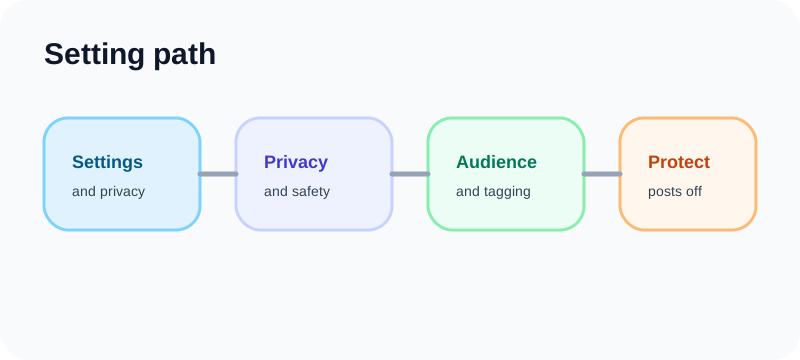
How do I make my tweets public? On Twitter/X, open Settings and privacy → Privacy and safety → audience controls, then turn off Protect your posts. That single toggle is what makes your tweets public. The steps below cover mobile, desktop, confirmation checks, and the privacy review most people skip.
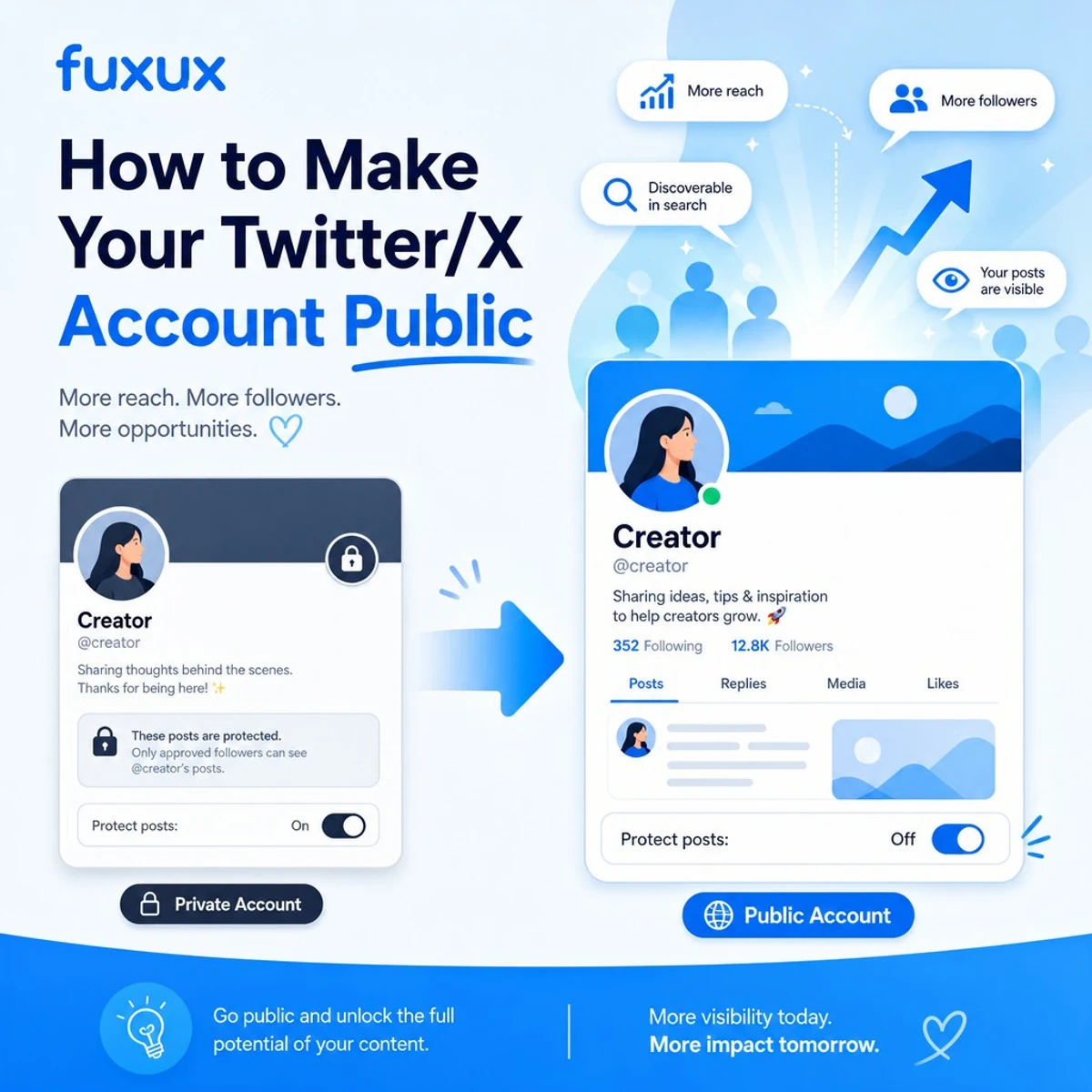
How do I make my tweets public? (quick answer)
The exact labels can shift as X updates the app, but the setting is still the same concept: protected posts are private; unprotected posts are public. If you searched "how do I make my tweets public," this is the control you need.
On iPhone or Android
- Open X and tap your profile avatar.
- Open Settings and support, then Settings and privacy.
- Go to Privacy and safety.
- Open Audience, media and tagging or a similarly named audience section.
- Turn off Protect your posts.
On desktop
- Open X.com in a browser.
- Choose More from the left sidebar.
- Open Settings and privacy.
- Go to Privacy and safety, then audience controls.
- Uncheck or toggle off Protect your posts.
X documents protected posts in its public and protected posts help article. If your menu looks different, search settings for “protect” or “audience.”
How to confirm your account is public
Do not assume the toggle saved. Confirm the account state before you announce anything important.
Look for the lock icon
Open your profile. A protected account usually shows a lock icon near the username. If the lock is gone, the account is no longer protected.
Test while logged out
Copy your profile URL, open a private browser window, and view the page without logging in. If posts are visible, the profile is public. If X asks the viewer to follow you first, the profile is still protected or the post is not accessible.
Ask a non-follower to check
Have someone who does not follow you view your profile. This is the most practical test because logged-in state, cache, and app experiments can make your own view misleading.
Public vs protected: what actually changes
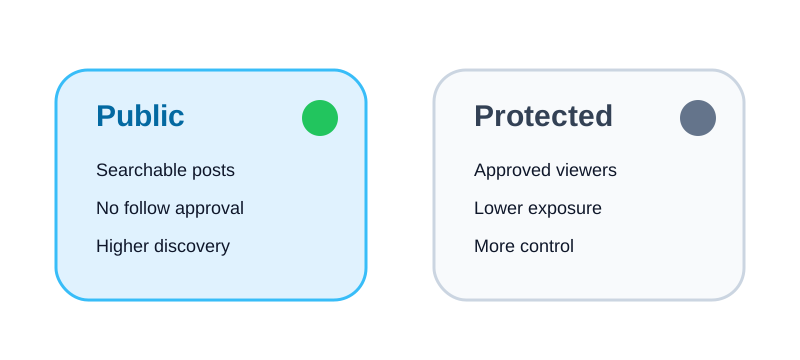
Going public changes discoverability, engagement, search exposure, and follower approvals. It does not magically improve content quality, but it removes the privacy wall that limits distribution.
People can follow without approval
When your account is public, new followers do not need permission. This removes friction for growth but also means more strangers can see your posts by default.
Posts can be shared more widely
Public posts can be reposted, quoted, embedded, linked, screenshotted, and discussed outside your follower circle. Protected posts are more limited, but no social setting prevents screenshots.
Your content can appear in search
Public posts may appear in X search and can sometimes be indexed by search engines or shown in previews. If you have old posts with personal details, review them before switching.
What happens to old posts when you go public?
Old protected posts can become visible after you turn protection off. That is the part people forget.
Review recent posts first
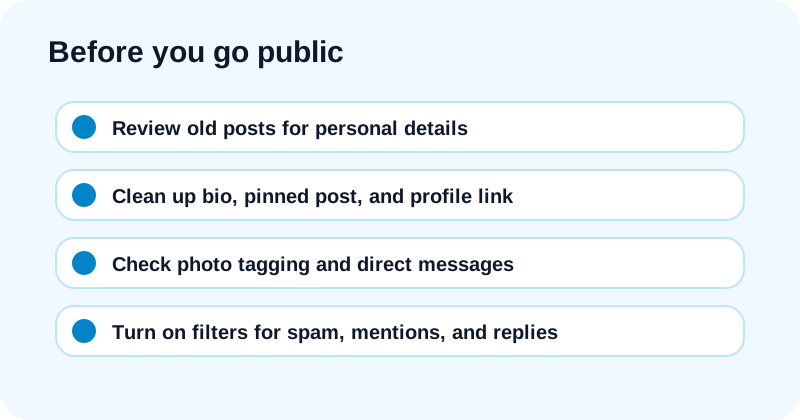
Scan at least your last few months of posts. Remove anything that includes private locations, personal disputes, sensitive photos, client details, or jokes that would not make sense to a wider audience.
Update your profile context
Public viewers will judge your profile quickly. Make sure your bio, pinned post, profile photo, header, and link explain who you are and what you post about.
Expect old replies to be easier to find
Your public replies can become part of broader conversations. If you used the account only for private chats and jokes, spend time cleaning before opening it.
Safety checklist before making your account public
Visibility is useful, but privacy still matters. Use this checklist before you flip the switch.
Remove personal contact details
Do not place your phone number, home location, school, or private email in your bio unless you intentionally want it public. Use a business contact page or separate creator email instead.
Check photo tagging
Public accounts are easier to tag. Review the photo tagging setting so only people you trust can tag you, or turn photo tagging off if you want fewer surprises.
Review direct messages
If you allow message requests from everyone, public visibility may bring more outreach and more spam. X explains account safety controls in its control your X experience guide.
Turn on filters if needed
Use muted words, notification filters, and reply controls if you post about topics that attract low-quality replies. Public does not mean every conversation has to be open to everyone.
Should creators stay public?
If you use X for a creator account, brand, product, newsletter, or professional network, public is usually the default choice. The platform can only help people discover content they are allowed to see.
Choose public if your goal is reach
Public accounts are better for audience growth, searchable opinions, launch updates, customer conversations, and cross-platform promotion. If you want your posts to travel, protection works against that goal.
Choose protected if your goal is control
A protected account makes sense for personal updates, smaller friend groups, sensitive topics, or periods when you do not want outside attention. Growth is not always the goal.
Consider two-account separation
Many creators keep one public account for work and one private account for close friends. That is cleaner than trying to make one account serve every audience.
How to grow after making your account public
Opening the account is just the door. Growth still comes from consistent, useful posts and real conversation.
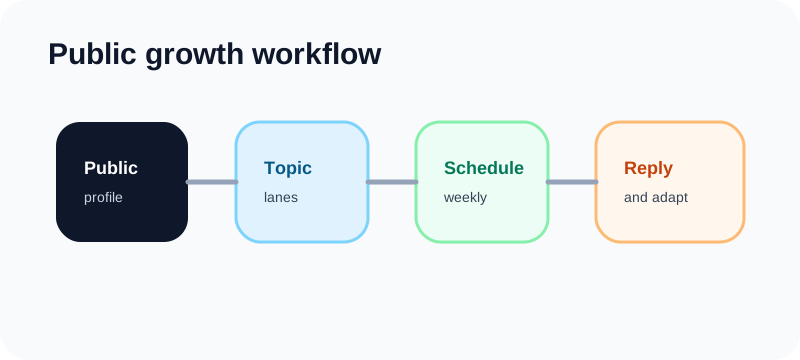
Pick a clear lane
People follow faster when they understand what they will get from you. Choose a few repeatable topics and make them obvious in your bio and pinned post.
Post consistently, not constantly
A public account does not need twenty posts a day. It needs a realistic rhythm you can maintain. Schedule ideas ahead of time, leave space for replies, and avoid flooding the timeline with duplicate copy.
If you are rebuilding your cadence after going public, download the free social media growth guide and map a 30-day posting rhythm before you start posting heavily.
Adapt content for each platform
If you also post on LinkedIn, Instagram, TikTok, YouTube, Bluesky, Threads, Pinterest, or Facebook, do not paste the exact same caption everywhere. Use one core idea, then adapt the hook and format.
How scheduling helps after your account is public
Once your X account is public, consistency matters more because more people can discover every post. Fuxux helps you plan that rhythm without turning publishing into a daily tab-switching loop.
Plan posts in batches
Write a batch of X posts at once, then schedule them across the week. Batching keeps you from posting only when you remember.
Cross-post with native captions
Use Fuxux to keep X concise while giving LinkedIn more context or Instagram a visual-first caption. The goal is consistency without making every platform sound identical.
Keep volume sane
A scheduler should help you avoid spam patterns, not create them. Space posts out, review each destination, and keep public accounts looking human.
Troubleshooting: the setting will not change
Update the app
If the menu is missing or the toggle does not stick, update the app or switch to desktop. X changes labels and layouts often enough that old screenshots can be misleading.
Refresh your session
Log out and back in. If you manage multiple accounts, confirm you are changing the correct one.
Check age and safety prompts
Accounts belonging to younger users may have extra safety defaults. Review prompts carefully and think through the privacy trade-off before changing visibility.
Wait if the platform is unstable
If settings are not saving during an outage or degraded period, wait and try later. Repeatedly toggling settings during a platform bug rarely helps.
FAQ
How do I make my tweets public?
Open Settings and privacy → Privacy and safety → audience controls, then turn off Protect your posts. That is how you make your tweets public on Twitter/X. Confirm by checking that the lock icon is gone and that a logged-out viewer can see your posts.
Will my followers be notified when I make the account public?
Usually no. The change is mostly silent. People may notice because they can share or view your posts more easily.
Can I make only one post public?
No. The protected-post setting applies to the account, not individual posts. Use separate accounts if you need both public and private posting.
Can I switch back to private later?
Yes. You can turn Protect your posts back on. Remember that content posted while public may already have been seen, saved, or shared.
Do pending follower requests get approved automatically?
No. Pending requests do not necessarily turn into followers. People can follow again once the account is public.
Does a public account guarantee more engagement?
No. It only makes discovery possible. Engagement still depends on topic clarity, post quality, timing, replies, and consistency.
Final checklist
- Turn off Protect your posts.
- Confirm the lock icon disappeared.
- View your profile from a logged-out or non-follower account.
- Review old posts and remove anything too personal.
- Update your bio, pinned post, and safety settings.
- Start a consistent posting schedule.
If your goal is reach, a public account is the right starting point. Pair it with a clean profile, a sane posting rhythm, and platform-specific captions. When you want to manage that across more than X, try Fuxux free and schedule your next week from one dashboard.
Publishing to Twitter/X regularly? See how scheduling works for Twitter/X.
About the author
I build Fuxux, a scheduler that publishes to 12 platforms from one queue. I write about the parts of posting that are actually fiddly — what each platform will and won't let you schedule natively, where the API limits bite, and how to keep a queue running without babysitting it.
Ready to post smarter?
Fuxux handles the scheduling, the formatting, and the AI captions — so you can focus on ideas.
Start free — no credit card