Why Can't I Post on Facebook? 9 Fixes
If Facebook will not let you post, use this 2026 troubleshooting checklist: outages, app bugs, permissions, spam filters, account restrictions.

Disclosure: Independent guide from Fuxux. We are not affiliated with the platforms or third-party tools mentioned in this article. Product names belong to their owners.
Quick rule: if publishing fails twice, stop retrying the same post. Repeated attempts can make a temporary platform limit look more suspicious. Diagnose first, then post a cleaner version.

Start with the 5-minute posting triage
Before changing passwords or reinstalling anything, run this short checklist. It prevents you from wasting time on the wrong fix.
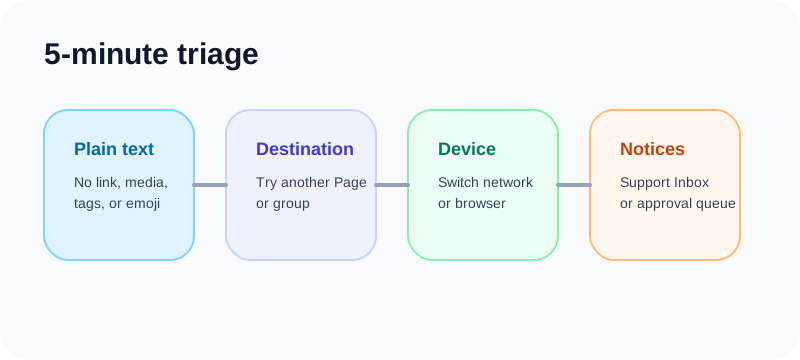
1. Test a plain text post
Open the native app or browser and try a short text-only post with no image, link, tag, mention, or emoji. If that works, your account can publish and the issue is probably the original media, link, destination, or wording.
2. Try a different destination
If your own Page works but a group does not, you are looking at group permissions or moderation. If nothing works anywhere, move toward account status, app health, or a platform outage.
3. Check another device or network
Switch from Wi-Fi to mobile data, or test from a desktop browser. A stuck upload on one phone is usually a local app or connection problem, not a platform-wide restriction.
4. Look for notifications
Check your Support Inbox, Page notifications, and group notices. A restriction notice, content warning, or pending approval message is more useful than the generic “something went wrong” toast.
Check whether the platform is having an outage
Sometimes your setup is fine and the service is simply broken for a slice of users. Outages can affect posting, media uploads, group moderation, login sessions, or business tools while the rest of the site still loads.
How to rule this out
Check a status tracker such as Downdetector's Facebook page, search for current reports on another social network, and test from a second device. If lots of users report the same issue at the same time, wait instead of repeatedly submitting the same content.
What to do during an outage
Save your draft, export your media, and schedule a backup slot. If you manage multiple channels, use the downtime to prepare platform-specific captions instead of trying the same failing action every minute.
Fix local app, browser, and connection problems
If one device fails while another publishes normally, the issue is usually local. These fixes are boring, but they solve a large share of failed posts.
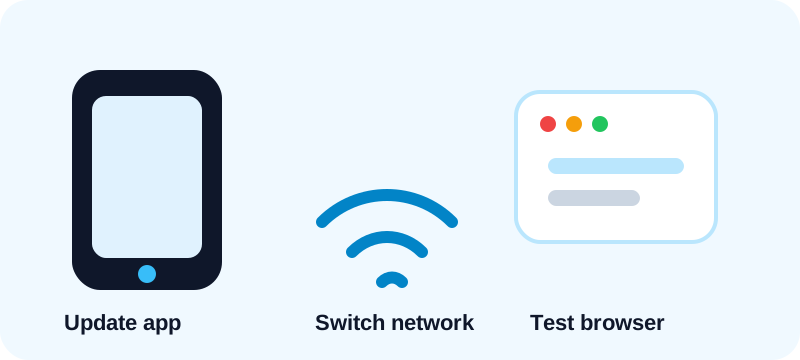
Update or reinstall the app
Use the latest version of the mobile app. If the upload spinner never finishes, uninstall and reinstall to clear corrupted local state. On desktop, try a private window to rule out extensions.
Clear cache and cookies on web
Old session files can create strange behavior: buttons that do nothing, drafts that disappear, or images that never attach. Clearing cache, logging in again, and testing a text post is a clean reset.
Compress oversized media
Large videos and high-resolution images are more likely to fail on weak connections. Export a smaller version, avoid unusual codecs, and test with one image before uploading a full batch.
Check Page, group, and role permissions
A successful personal post does not prove you can publish everywhere. Pages, groups, and business assets each have their own rules.
Group posts may require approval
Some groups hold every member post for moderation. In that case the post is not broken; it is pending. Read the group rules and recent admin announcements before reposting.
Your Page role may not allow publishing
People with limited roles can help moderate or view insights without being allowed to publish. Ask an admin to confirm your access level if the Page post composer is missing or blocked.
Third-party tools need fresh permission
If a scheduler reports an authorization error, disconnect and reconnect the account. Tokens can expire, permissions can be revoked, and business assets can change ownership. Meta documents business integrations and app access in its help center.
Review the content before blaming your account
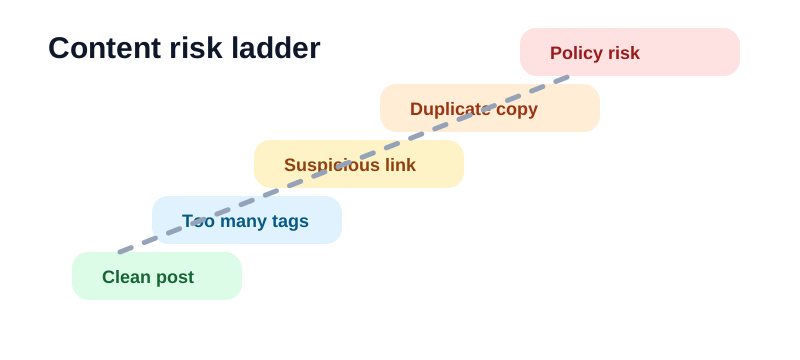
When only one post fails, the post itself is the likely trigger. Automated systems look for policy problems, unsafe links, duplicate text, misleading claims, and behavior that resembles spam.
Remove links and publish a clean version
First test the same idea without a URL. If that works, the link, redirect chain, shortener, or domain reputation is the problem. Avoid link shorteners for important posts and use trustworthy landing pages.
Rewrite duplicate copy
If you copied a viral phrase, promotional blurb, or template that many people are sharing, rewrite it in your own words. Add context, explain why it matters, and avoid blasting identical text into multiple communities.
Reduce tags, mentions, and hashtags
Too many tags can make a normal update look automated. Keep mentions relevant, use fewer hashtags, and remove unnecessary emoji strings. Clean posts are easier for people and systems to understand.
Check policy-sensitive topics
Meta publishes its Community Standards so users can understand categories that may be limited or removed. Review them if your post touches regulated goods, harassment, misinformation, adult content, or graphic material.
Understand account restrictions and “posting jail”
If every destination fails, your account may be under a temporary posting restriction. People often call this “jail,” but the practical question is simple: did the platform limit your ability to publish, comment, invite, or message?
Common signs
You may see a message saying you are temporarily blocked, a notice in Support Inbox, missing composer options, or an appeal button. Restrictions can last hours, days, or longer depending on the reason and account history.
What not to do
Do not create a second account to bypass the limit. Do not keep reposting the same blocked content. Do not move the same text into dozens of groups. Those choices can extend the problem.
What to do instead
Read the notice, appeal only if it is clearly wrong, and use the downtime to clean up your workflow. Review recent posts for repeated wording, aggressive links, or group behavior that looked automated.
Rate limits: when you posted too much too fast
You can hit a temporary limit without receiving a formal policy strike. This is common when a creator publishes the same link into many groups, leaves repetitive comments, or connects a tool and immediately schedules a large batch.
Spread posts across time
A healthy schedule looks human. Publish important updates at planned intervals, vary captions for each destination, and leave space for replies. Fuxux helps here by putting planned posts on a calendar instead of encouraging frantic manual repetition.
Personalize repeated announcements
If several communities need the same information, write a different lead-in for each. A local group, a customer Page, and a professional audience should not receive the exact same caption.
Third-party scheduler troubleshooting
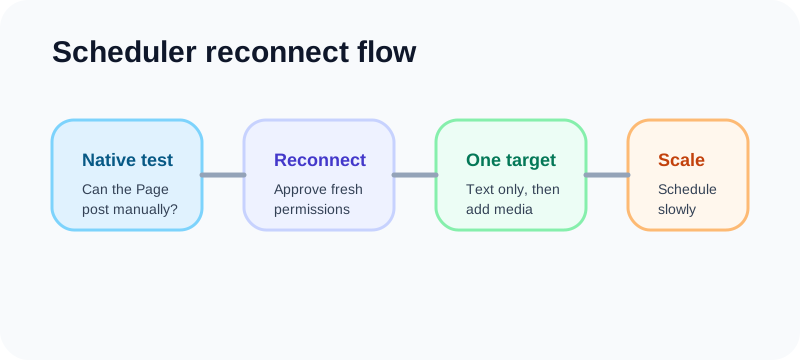
If native posting works but a scheduler fails, narrow the issue to authorization, platform support, content format, or account selection.
Reconnect the account
Disconnect, reconnect, and approve the full permission prompt. If you manage multiple Pages, make sure the correct asset is selected after reconnecting.
Check what the API supports
Not every personal posting surface is available to third-party apps. Some workflows are only supported for Pages or specific business assets. If manual posting works but API posting does not, the destination may be unsupported.
Test one destination at a time
Send a plain text post to one Page first. Then add media. Then add more destinations. This isolates the failing piece instead of turning every test into a mystery.
A safer publishing workflow for multiple channels
Most restrictions happen when publishing becomes rushed: same text everywhere, too many posts close together, no review step, and no clear account warm-up. A safer workflow is slower in the short term and faster over a month.
Use the free social media growth guide to plan a slower 30-day posting rhythm, warm up accounts, and avoid the repeated-copy patterns that often trigger limits.
Use one master idea, not one identical caption
Start with the core message, then create native variations for each platform. LinkedIn can carry more context. X needs sharper framing. Instagram may need a visual-first caption. A Page update should feel clear and direct.
Keep a publishing log
Track destination, time, caption angle, link, and result. If a post fails, the log helps you see whether the issue was a link, a time window, a destination, or repeated wording.
Warm accounts gradually
New or quiet accounts should not jump from zero activity to dozens of posts in one day. Start with a normal rhythm, reply to comments, and publish original content before scaling output.
FAQ
Why can I comment but not publish a post?
Some restrictions are action-specific. You may still be allowed to comment, react, or message while publishing is temporarily limited. Check Support Inbox for the exact notice.
Why does my post vanish after I publish it?
Usually the post was removed by an automated content check or moved into a moderation queue. Test a simpler version without links or tags to isolate the cause.
Can scheduling tools cause restrictions?
A reputable tool is not the issue by itself. Risk comes from how you use it: duplicate posts, unsupported destinations, missing permissions, or unrealistic volume. Use tools to stagger and review content, not to spam.
How long should I wait before trying again?
If the error looks like a rate limit, wait at least several hours and ideally 24 hours. If it is an outage, wait until reports drop. If it is a permissions issue, fix access before retrying.
Final checklist
When a post will not publish, work through this order:
- Check for a platform outage.
- Test a plain text post on another device or network.
- Confirm Page, group, and scheduler permissions.
- Remove links, duplicate copy, tags, and excessive hashtags.
- Check Support Inbox for restrictions or appeal options.
- Slow down if you have been publishing aggressively.
- Reconnect your scheduler if native posting works but tool posting fails.
If you manage more than one platform, the goal is not to publish more recklessly. It is to publish with less friction and more control. Plan the week, adapt each caption, keep a human pace, and treat failed posts as a signal to diagnose before you retry.
When you are ready to organize posting across Facebook, Instagram, LinkedIn, TikTok, YouTube, X, Pinterest, Threads, and Bluesky from one dashboard, try Fuxux free.
Publishing to Facebook regularly? See how scheduling works for Facebook.
About the author
I build Fuxux, a scheduler that publishes to 12 platforms from one queue. I write about the parts of posting that are actually fiddly — what each platform will and won't let you schedule natively, where the API limits bite, and how to keep a queue running without babysitting it.
Ready to post smarter?
Fuxux handles the scheduling, the formatting, and the AI captions — so you can focus on ideas.
Start free — no credit card