How to Connect Instagram to Facebook (2026)
Learn how to connect Instagram to Facebook in 2026: professional account requirements, Page permissions, Accounts Center sharing, troubleshooting.

Disclosure: Independent guide from Fuxux. We are not affiliated with the platforms or third-party tools mentioned in this article. Product names belong to their owners.
If you are asking how do I connect my Instagram to Facebook, you are usually trying to solve one of three problems: stop posting twice, unlock business tools, or fix a scheduler that cannot publish until Meta sees the accounts as connected.
The connection itself is not complicated. The messy part is access. You need the right Instagram account type, the right Facebook Page, and enough control over both sides before the button works.
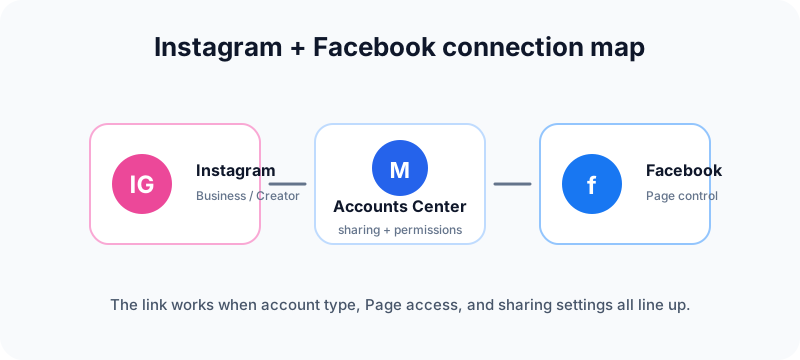
Quick answer: connect Instagram to Facebook in 2026
For a professional Instagram account, the cleanest route is usually inside Instagram:
- Open Instagram and go to your profile.
- Tap Edit profile.
- Under public business or profile information, tap Page.
- Choose Connect or create, then continue through Facebook login.
- Select the correct Facebook Page and confirm the connection.
- Open Accounts Center to review sharing settings.
Meta's Business Help Center says this setup requires a professional Instagram account and full control of a Facebook Page. It also notes that connected accounts enable cross-posting, shared insights, and Instagram business tools. See Meta's official guide to connect a professional Instagram account to a Facebook Page.
If you only want your personal Facebook profile and Instagram account in the same account area, use Accounts Center. If you manage a brand, business, creator profile, ads, scheduling, or analytics, focus on connecting the Instagram professional account to the correct Facebook Page.
Before you connect: the 5-minute pre-flight check
Most failed attempts happen because one prerequisite is missing. Run this before you start tapping through login screens.
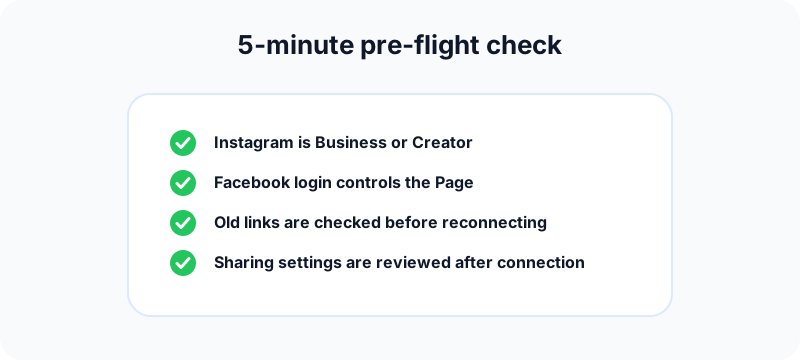
Confirm Instagram is professional
For Page linking, Instagram should be set as a professional account: Business or Creator. A personal profile may be prompted to switch during the connection flow, but doing it first makes troubleshooting easier.
Choose Creator if the account is mostly a personal brand, public figure, or influencer profile. Choose Business if the account belongs to a shop, local company, agency client, SaaS product, or team-managed brand.
Use the Facebook profile with Page control
Being able to post sometimes is not the same as having full control. If the Page does not appear during setup, you may be logged into the wrong Facebook profile or you may only have limited task access.
Check for old links
Instagram accounts often carry old connections from past agencies, former employees, duplicate Pages, or abandoned business setups. If the wrong Page keeps appearing, check Page settings and Accounts Center before reconnecting.
Decide what you actually want connected
There are two related but different goals:
| Goal | Where to look | Best for |
|---|---|---|
| Instagram professional account connected to a Page | Instagram profile or Meta Business settings | Business tools, ads, scheduling, insights |
| Instagram and Facebook account in Accounts Center | Accounts Center | Sharing across profiles and connected experiences |
Method 1: connect from the Instagram app
This is the best starting point for most creators and small businesses because it begins from the Instagram account you already know is correct.
Step 1: go to profile settings
Open the Instagram app, go to your profile, and tap Edit profile. If the account is professional, look for the Page field under the public business or profile information section.
Step 2: tap Page and connect
Tap Page, then choose the option to connect or create a Facebook Page. Instagram will ask you to continue into Facebook login. Use the Facebook profile that controls the Page, not a random personal account you rarely use.
Step 3: choose the correct Page
If you manage several Pages, slow down here. Similar names, old local branch Pages, and duplicate test Pages are common. Check the Page name, profile image, business, and region before confirming.
Step 4: review Accounts Center
After the connection, open Accounts Center and review sharing across profiles. Do not automatically turn on every sharing option until you understand what will publish where.
Method 2: connect from Facebook or Meta Business tools
The Facebook-first route is often better for agencies, teams, and businesses that manage multiple Pages. It lets you verify the Page before touching Instagram.
Start from the Page you want connected
Open the Facebook Page, then look for Page settings, linked accounts, Instagram, or connected assets depending on the current interface. If you see an Instagram account already linked, verify whether it is the current one before removing anything.
Log into the Instagram professional account
When prompted, log into the Instagram account you want attached to that Page. Approve the permissions and complete the connection.
Use this method when the app path is confusing
If Instagram shows the wrong Page, if an agency manages the Facebook side, or if the business has several Pages, the Facebook-first route usually gives more context. It also helps document what is connected for future teammates.
How to turn on sharing from Instagram to Facebook
Connecting accounts does not mean every post must publish everywhere. You control sharing behavior.
Instagram's Help Center says that once accounts are added to Accounts Center, you can share an individual Instagram post to Facebook before publishing, or turn on automatic sharing from Profile > Menu > Accounts Center > Sharing across profiles. See Instagram's official guide to sharing Instagram posts to Facebook.
Use one-time sharing for most content
For creators, one-time sharing is safer. You can decide whether a specific Reel, carousel, photo, or announcement fits your Facebook audience.
Use automatic sharing for broad updates
Automatic sharing can work for business announcements, event reminders, product launches, and evergreen educational content. It is less ideal for inside jokes, trend posts, Stories, or posts written specifically for Instagram culture.
Check the Facebook audience
When Instagram shares to Facebook, the Facebook audience may differ from the audience you expect. Review audience settings before relying on automatic sharing.
Can you share Facebook posts to Instagram?
Sometimes, but with limits. Meta's Facebook Help Center says posts must be eligible for Instagram. Examples that may not share include text-only posts, live videos, reshares, posts with more than 10 photos, multiple videos, photos of different sizes, or dimensions that do not fit Instagram well. See Meta's guide to sharing Facebook posts to Instagram.
That is why many teams build from a master asset, then adapt for each platform instead of assuming cross-posting will handle every format.
Troubleshooting: why the connection is not working
If the setup fails, do not keep repeating the same login flow. Diagnose the likely bucket first.
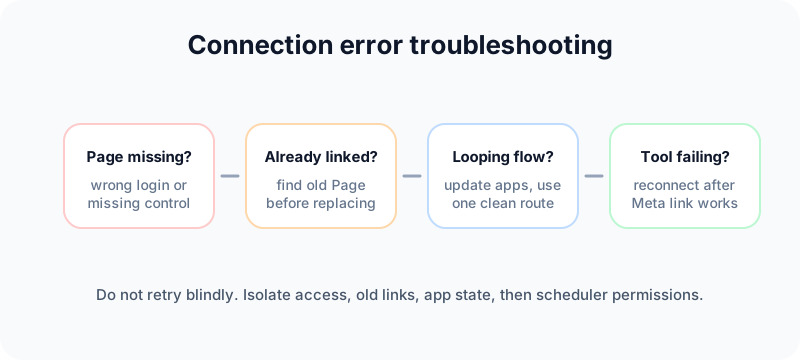
The Facebook Page does not show up
Most likely causes:
- You are logged into the wrong Facebook profile.
- You do not have full control of the Page.
- The Instagram account is still personal or attached elsewhere.
- The Page belongs to a business portfolio you cannot manage.
Fix access first. Retrying from the same wrong login will not make the Page appear.
Instagram says the account is already connected
Find the existing connection before replacing it. Check Instagram profile settings, Accounts Center, Facebook Page linked accounts, and Meta Business settings. If a former employee or agency connected the account, you may need the business owner to clean up access.
You see a permissions error
Assume the permission error is accurate until proven otherwise. Ask a Page admin or business portfolio owner to confirm your role. If you are using a scheduler, reconnect after the Page link is correct so the tool receives fresh permissions.
The flow loops or fails on mobile
Update both apps, close them completely, log out of the wrong Facebook profile, and try again from one route. If mobile keeps looping, use desktop Facebook or Meta Business settings to verify the Page connection.
Cross-posting works once, then stops
Check whether automatic sharing was turned off, whether the post format is eligible, and whether the connected Page changed. For scheduling tools, expired permissions can also cause sudden failures.
What to do after the accounts are connected
The link is only the wiring. The publishing workflow still needs judgment.
Decide what should cross-post
- Good cross-post candidates: announcements, educational carousels, product launches, event reminders, testimonials.
- Review first: memes, trend Reels, personal Stories, niche creator jokes, posts with platform-specific language.
- Keep native: text-only Facebook updates, community posts, Facebook shares, and content that does not fit Instagram formats.
Adapt captions instead of copying everything
Instagram captions can be visual and community-led. Facebook Page captions usually need clearer context. If you publish to LinkedIn too, use the LinkedIn text formatter to make longer explanations easier to scan.
Prepare visuals that travel well
If you are repurposing Instagram content, use the Instagram carousel splitter to turn wide ideas into clean slides, or the Instagram grid maker to preview a launch set before it goes live. If you are renaming a brand before connecting accounts, check availability with the Instagram handle checker.
Build a calmer content rhythm
After connecting accounts, do not immediately schedule a huge batch of duplicate posts. Use the social media growth guide to plan a safer posting cadence, and read our guide on why you cannot post on Facebook if you are also seeing publishing failures.
A scheduler checklist after connecting Instagram and Facebook
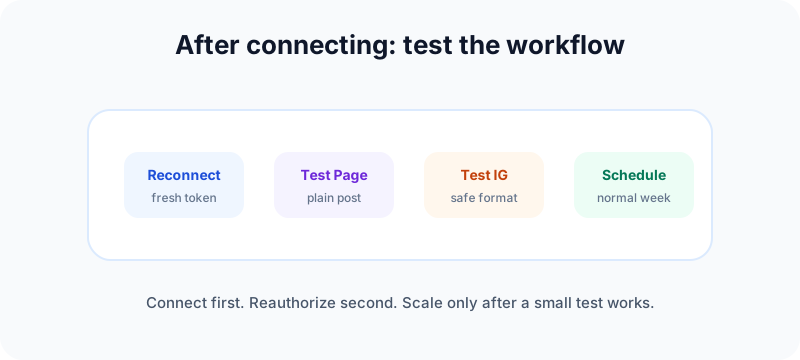
If a third-party scheduler or content calendar depends on this connection, test it slowly:
- Reconnect Instagram and Facebook inside the tool after the Meta link is correct.
- Approve the full permission prompt.
- Send one plain test post to the Facebook Page.
- Send one Instagram-safe image or Reel draft.
- Confirm analytics and Page selection match the right brand.
- Only then schedule a normal week of content.
Fuxux is built for this kind of controlled workflow: one calendar, platform-specific captions, and a review step before posts go out across several networks.
Free tools to use after linking the accounts
The connection solves access. Your next job is making sure each post fits the audience and format before it goes live.
- Instagram carousel splitter: turn one wide announcement, checklist, or tutorial into swipeable panels before sharing it across Meta surfaces.
- Instagram grid maker: preview a campaign or launch sequence before you connect cross-posting to a real Facebook Page.
- Instagram handle checker: verify a clean handle before renaming a brand account or connecting a new Page.
- Social media growth guide: plan a weekly cadence so the new connection does not turn into duplicate posting.
- LinkedIn text formatter: adapt the same announcement for LinkedIn if the campaign also needs a professional version.
Frequently asked questions
Do I need a business Instagram account to connect to Facebook?
For a Facebook Page connection, use a professional Instagram account: Business or Creator. Meta says personal accounts may be prompted to switch during the linking process.
Can one Instagram connect to multiple Facebook Pages?
For a clean business workflow, keep one Instagram account connected to the main matching Facebook Page. Multiple or outdated Page relationships create publishing and reporting confusion.
Will old Instagram posts automatically appear on Facebook?
No. Linking accounts mainly affects future sharing, connected experiences, permissions, insights, and business tools. It does not retroactively publish your old content.
Can I disconnect Instagram from Facebook later?
Yes. You can disconnect from the Page connection area or Accounts Center. Document the current setup first if you manage a client or team account.
Why does my scheduler still fail after I connect the accounts?
The scheduler may still need a fresh reconnect, full permission approval, correct Page selection, or a supported post format. Native connection is the foundation, but third-party tools still need valid authorization.
Should I turn on automatic cross-posting?
Only for content that fits both audiences. For most creators, one-time sharing plus a scheduler review step protects quality better than publishing everything automatically.
Final setup checklist
Use this order if you want the cleanest connection:
- Switch Instagram to Business or Creator if needed.
- Log into the Facebook profile with full Page control.
- Remove or document old Instagram/Page links.
- Connect from Instagram or from the Facebook Page.
- Review Accounts Center sharing settings.
- Test one post before automating anything.
- Reconnect your scheduler after the Meta link is confirmed.
Once the accounts are connected, your next win is not posting the same thing everywhere. It is building a workflow where each platform gets the right version of the same idea. When you are ready to plan that across Instagram, Facebook, LinkedIn, TikTok, YouTube, X, Pinterest, Threads, and Bluesky, try Fuxux free.
Publishing to Instagram regularly? See how scheduling works for Instagram.
About the author
I build Fuxux, a scheduler that publishes to 12 platforms from one queue. I write about the parts of posting that are actually fiddly — what each platform will and won't let you schedule natively, where the API limits bite, and how to keep a queue running without babysitting it.
Ready to post smarter?
Fuxux handles the scheduling, the formatting, and the AI captions — so you can focus on ideas.
Start free — no credit card