Can You Schedule Pinterest Posts? 2026 Guide
Yes — schedule Pinterest Pins with the free native scheduler. Business account required, 30-day window, 10-Pin cap, mistakes, checklists.

Disclosure: Independent guide from Fuxux. We are not affiliated with Pinterest or third-party tools mentioned in this article. Product names belong to their owners.
Yes — you can schedule Pins on Pinterest in 2026. The native composer includes a free "Publish at a later date" option for Business accounts. You upload the image or video, fill in the Pin details, pick a future time, and Pinterest publishes it for you.
The useful question is not whether scheduling exists. It is whether your workflow protects the vertical crop, the keyword-rich title and description, the board choice, and the destination link. Pinterest is a visual search engine as much as a feed — scheduling should keep a steady stream of fresh Pins flowing, not just fill a calendar with unlabeled images.
Pair this guide with the Instagram grid maker guide, how to cross-post to multiple platforms, and how to schedule social media posts so format, discoverability, and timing work together.
Quick answer: yes—use the built-in "Publish at a later date" option for free auto-publish, up to 30 days ahead, with up to 10 Pins scheduled at once. Use a multi-platform scheduler when this channel sits beside Instagram, TikTok, X, and Bluesky in the same weekly batch.
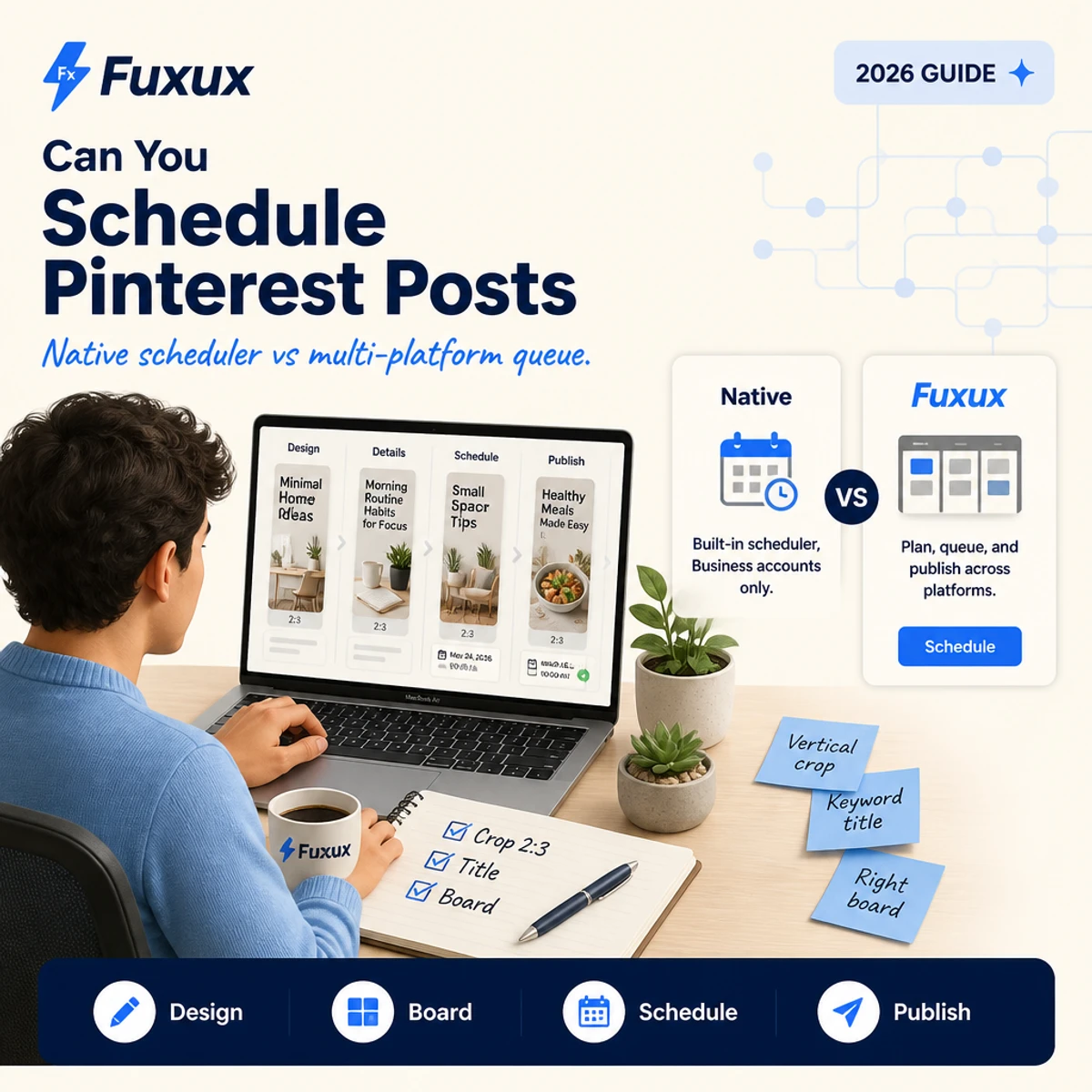
Quick answer: can you schedule Pinterest posts?
Yes. You can create a Pin and schedule it to publish later, then manage your scheduled Pins from your profile. The Pinterest Business Help Center documents the flow: open Create, choose Create Pin, upload your image or video, fill in the Pin details, choose Publish at a later date, set the date and time, then finish creating the Pin.
Official details that matter for planning:
- Native scheduling requires a Business account (free to switch to). Personal accounts cannot schedule natively and need a third-party tool instead.
- You can schedule a Pin up to 30 days in advance.
- You can have up to 10 Pins scheduled for the future at once, and you can only schedule one Pin at a time through the composer.
- After scheduling, you can still edit the publish date, title, board, description, and link—but not the image or video itself.
See the official guide: Schedule Pins on Pinterest Business Help.
In plain language: native scheduling is real, free, and capped at 10 pins ahead. It is not a substitute for a clear vertical crop, a keyword-rich title and description, and the right board.
Native scheduling vs third-party schedulers
Both options schedule Pins. They solve different jobs.
| Approach | Best for | Trade-off |
|---|---|---|
| Native "Publish at a later date" | Business accounts posting only here, light volume | Capped at 10 scheduled Pins, 30-day window, one at a time |
| Multi-platform scheduler | Creators batching this channel with Instagram, TikTok, X, Bluesky | Requires connected account and a review habit |
| Manual publish | Seasonal drops, trend-jacking, real-time promotions | Harder to keep a steady daily Pin cadence |
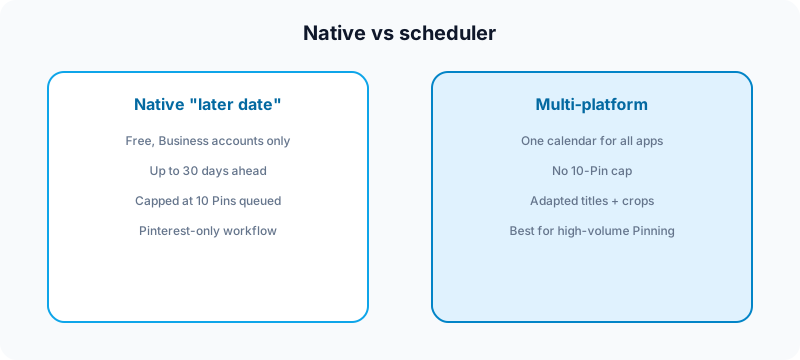
How to schedule a Pin natively
Steps shift slightly between web and mobile, but the workflow matches the Help Center.
- Log into your Business account and click Create, then Create Pin (web) or tap the + icon and choose Pin (mobile app).
- Upload your image or video. On web, uploading up to 10 images at once creates separate Pins.
- Fill in the title, description, destination link, and board.
- Choose Publish at a later date (web) or tap the schedule-date icon (mobile), then set the date and time within the 30-day window.
- Finish creating the Pin. On mobile, confirm by tapping Schedule twice.
- To review later: open your profile and check your scheduled Pins list to edit the date, title, board, description, or link—or delete via the ellipsis icon.
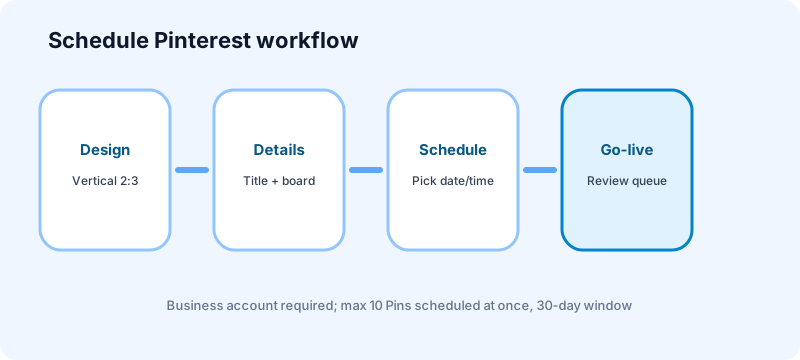
Personal account vs Business account
Only Business accounts get native scheduling. It is free to convert, and conversion does not require a website or ad spend. If a personal account needs to plan ahead, either switch to Business or use a third-party scheduler that supports Pinterest's API.
Web vs mobile app
Both support scheduling, but the web composer is faster for batching several Pins in one sitting. Confirm your own account shows "Publish at a later date" before promising a client a specific cadence—feature rollout can lag on some app versions.
What you can and cannot schedule
Know the boundaries before you batch a week of Pins.
- Standard image Pins: core schedulable use case.
- Video Pins: schedulable through the same composer flow.
- Up to 10 images per web upload: creates that many separate Pins—schedule each individually.
- Editing after scheduling: publish date, title, board, description, and link can change; the image or video itself cannot.
- Volume above 10 scheduled Pins: not supported natively—this is where a third-party scheduler earns its keep.
Board selection tip
Lock the destination board before you schedule. A great Pin on the wrong board still underperforms—board relevance is part of how Pinterest's search and recommendation system reads the content, not just a filing cabinet.
When to schedule vs post live
Schedule ahead when:
- The Pin is evergreen (how-to, roundup, product, seasonal-but-planned content).
- You want a steady daily or weekly Pin cadence without logging in every day.
- You are batching a content day and designing several Pins from one blog post or product drop.
Post live when:
- You are reacting to a trend or seasonal spike that needs to go out today.
- You need more than 10 Pins queued at once—switch to a multi-platform scheduler instead.
- The destination link or offer might change before the scheduled time.
How third-party scheduling usually works
A multi-platform scheduler connects through Pinterest's official API (availability depends on the tool and app review). You upload media, draft a title and description, choose a publish time, and manage the queue beside Instagram, TikTok, YouTube, X, Facebook, Threads, Bluesky, and LinkedIn.
That matters when one blog post or product photo becomes a Pin here, an Instagram carousel, a short TikTok, and an X thread—each with different crops and copy. Read how to cross-post to multiple platforms for the adaptation layer.
A multi-platform scheduler fits here: queue this channel in the same calendar as your other networks, adapt titles and descriptions by platform, review before publish, and keep a weekly rhythm without nine tabs. See best social media scheduling tools for creators and best social media scheduler for creators.
Pin design and SEO prep before you queue
Pinterest ranks Pins more like a search engine than a chronological feed. Scheduling a weak Pin still fails to surface.
- Vertical crop: 2:3 aspect ratio (1000×1500px) is the safe default—square and landscape crop awkwardly in-feed.
- Keyword-rich title: front-load the search term a saver would actually type, not a clever pun.
- Description: two or three sentences of natural, keyword-relevant text—not a hashtag dump.
- Board relevance: match the Pin's topic to a board your audience already follows for that topic.
- Destination link: confirm it loads correctly and matches what the Pin promises before you queue it.
- Fresh vs re-pinned: Pinterest's system favors accounts that keep publishing new Pin images, not the same graphic recycled endlessly.
Common scheduling mistakes
- Scheduling on a personal account and wondering why the option is missing—switch to Business first.
- Square or landscape crops that get cut awkwardly in the vertical feed.
- Generic titles with no keyword a saver would search for.
- Wrong board chosen out of habit instead of topical relevance.
- Hitting the 10-Pin cap and assuming scheduling is broken—it is a documented limit, not a bug.
- Skipping review on team accounts—use social media approval workflow.
Pre-publish checklist for scheduled Pins
- Business account confirmed (not personal)
- Vertical 2:3 crop, no cut-off text or faces
- Title includes the real search term
- Description is natural, not hashtag-stuffed
- Correct, relevant board selected
- Destination link tested and loads correctly
- Under the 10-Pin scheduled cap
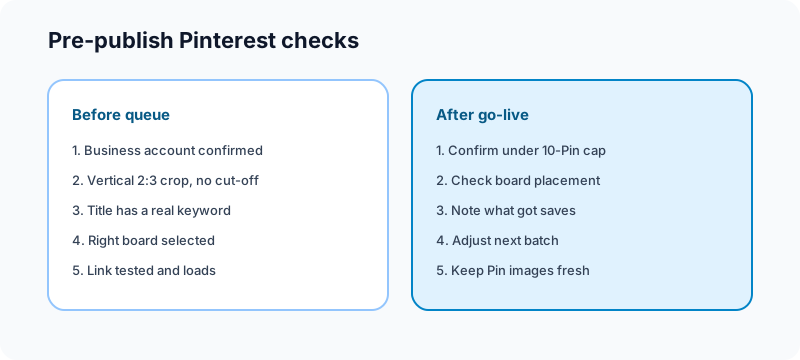
Free tools to support a Pinterest content week
| Task | Free tool | How it helps |
|---|---|---|
| Plan the week's topics | Growth guide | Map themes before batch day. |
| Split one image into feed-ready tiles | Grid maker | Repurpose a single graphic into multiple Pin-ready crops. |
| Turn a blog post into a carousel | Carousel splitter | Reuse the same source content across platforms. |
| Draft multi-platform captions | Free tools | Batch Pin titles and descriptions beside other platform copy. |
Browse the full set on the free tools page.
Related guides
- Can you schedule LinkedIn posts?
- Can you schedule Facebook posts?
- Can you schedule TikTok posts?
- Can you schedule Instagram Stories?
- Can you schedule Bluesky posts?
- How to schedule social media posts
FAQ: scheduling Pinterest posts
Can you schedule Pinterest Pins for free?
Yes. The native "Publish at a later date" option is free on Business accounts. Third-party tools are optional when you need a broader multi-platform calendar or more than 10 Pins queued at once.
Do I need a business account to schedule?
Yes for native scheduling. Personal accounts do not have the option and either need to convert (free) or use a third-party scheduler.
How far in advance can you schedule?
Up to 30 days ahead, with a maximum of 10 Pins scheduled at once. For most creators, a rolling one-to-two-week queue with weekly review beats trying to fill the full 30-day window at once.
Can you edit a scheduled Pin?
Yes—publish date, title, board, description, and link can all change after scheduling. The image or video itself cannot; you would need to delete and recreate the Pin to change the media.
Does scheduling hurt reach?
Scheduling itself is not the problem. A square crop, a generic title with no keyword, or the wrong board hurt more than the publish method. Pinterest rewards steady, fresh, well-tagged Pins regardless of whether they went out live or scheduled.
Should new accounts schedule Pins?
Yes, more than most platforms—Pinterest content has a long shelf life, so building a steady scheduled cadence early compounds over months, unlike a feed post that mostly matters in its first hours.
Should I use native scheduling or Fuxux?
Use the native tool if you only need Pinterest and fewer than 10 Pins queued at a time. Use Fuxux when you want one workflow for multiple platforms, platform-specific titles and crops, and a higher-volume queue than the native 10-Pin cap allows.
Where a scheduler fits
Use native scheduling when you need free, light-volume auto-publish on a Business account. Use a multi-platform scheduler when this channel sits inside a creator system that also covers Instagram, TikTok, X, Facebook, Threads, Bluesky, and LinkedIn—draft titles and descriptions per platform, review before publish, and keep one calendar instead of nine tabs. Fuxux helps creators plan that wider queue while the native path handles go-live when you prefer it.
We are not affiliated with Pinterest, Meta, TikTok, LinkedIn, or X. Platform names are used to describe creator publishing workflows.
Bottom line
Yes, you can schedule Pinterest Pins in 2026—natively with "Publish at a later date" for free on Business accounts, up to 30 days ahead, capped at 10 Pins scheduled at once. Convert to a Business account first, lock the vertical crop and keyword-rich title before you queue, pick the right board, and treat scheduling as cadence infrastructure—not a substitute for Pins people actually search for and save.
Publishing to Pinterest regularly? See how scheduling works for Pinterest.
About the author
I build Fuxux, a scheduler that publishes to 14 platforms from one queue. I write about the parts of posting that are actually fiddly — what each platform will and won't let you schedule natively, where the API limits bite, and how to keep a queue running without babysitting it.
Ready to post smarter?
Fuxux handles the scheduling, the formatting, and the AI captions — so you can focus on ideas.
Start free — no credit card