Can You Schedule LinkedIn Posts? 2026 Guide
Yes — schedule LinkedIn posts with the free native clock scheduler. Learn profile vs Page, 10 min–3 month windows, document posts, mistakes, checklists.

Disclosure: Independent guide from Fuxux. We are not affiliated with LinkedIn, Microsoft, or third-party tools mentioned in this article. Product names belong to their owners.
Yes — you can schedule posts on LinkedIn in 2026. The native composer includes a free clock-based scheduler for personal profiles and Company Pages. You draft the update, pick a future time, and the platform publishes it for you.
The useful question is not whether scheduling exists. It is whether your workflow protects the first line, media crop, document carousel quality, timezone, and early comments. Scheduling should make your feed calmer—not turn a weak update into automated clutter that posts while you cannot reply.
Pair this guide with carousel strategy for creators, why posts get low impressions, and how to schedule social media posts so format, reach, and timing work together.
Quick answer: yes—use the built-in Schedule option (clock icon) for free auto-publish on profiles and Pages, typically from about 10 minutes to 3 months ahead. Use a multi-platform scheduler when this network sits beside Instagram, TikTok, X, and Bluesky in the same weekly batch.
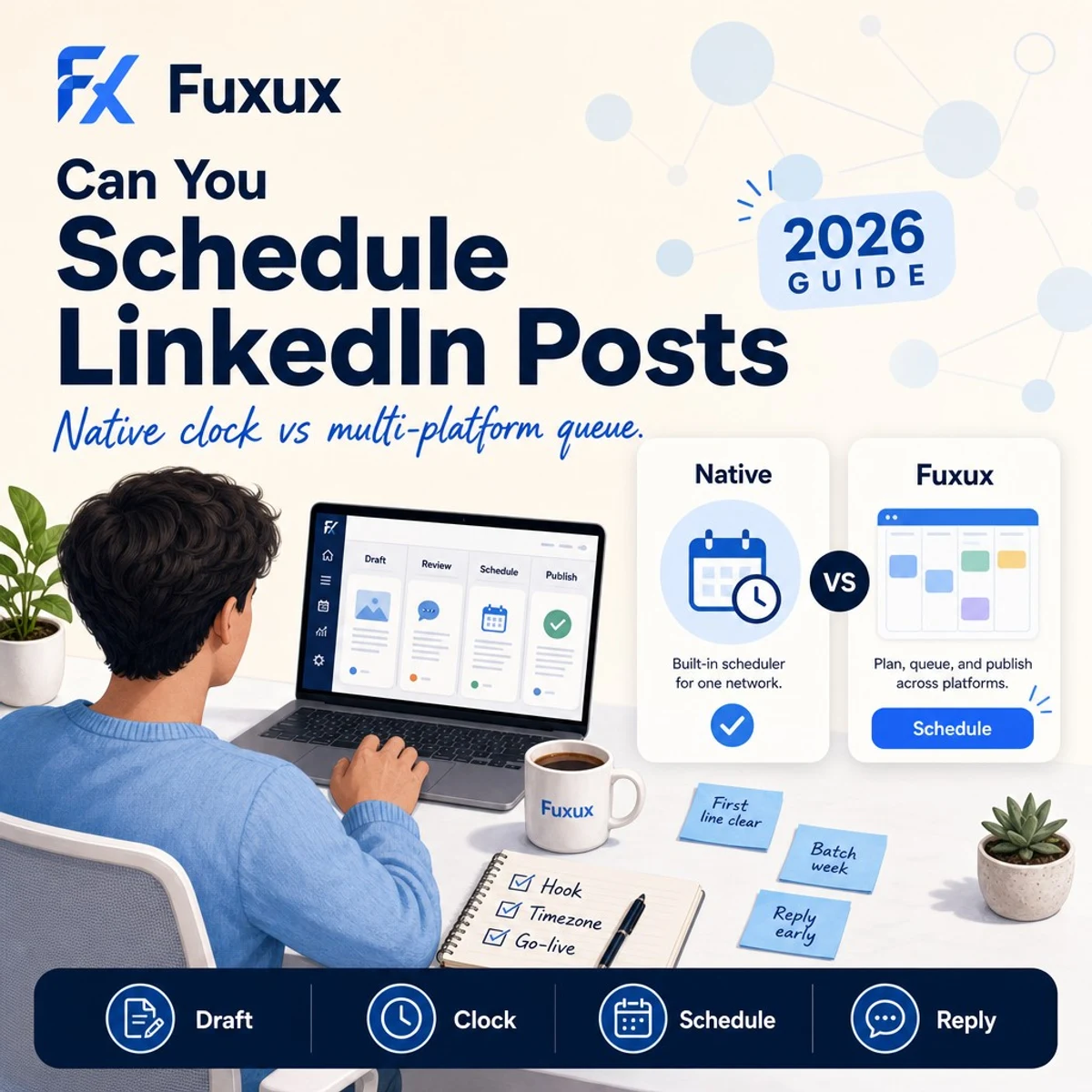
Quick answer: can you schedule LinkedIn posts?
Yes. You can create a post and schedule it to go live later, then manage the list of scheduled posts from the same composer. The Help Center documents the flow: open Start a post, write your update, click the clock icon, choose date and time, confirm with Next, then click Schedule.
Official details that matter for planning:
- Scheduled time must fall within roughly 10 minutes to 3 months from now (the UI rounds to supported intervals; you can also type an exact time).
- Scheduled time is standardized in UTC based on your device timezone—verify the clock before a trip or DST change.
- Some post types cannot be scheduled (commonly Events, Jobs, and Services attachments)—the composer will block those on the schedule path.
See the official guide: Schedule posts on LinkedIn Help. For broader publishing tips, Microsoft also documents creator workflows in the LinkedIn Marketing Solutions hub.
In plain language: native scheduling is real and free. It is not a substitute for a strong opening line, clear media, and replies in the first hour after publish.
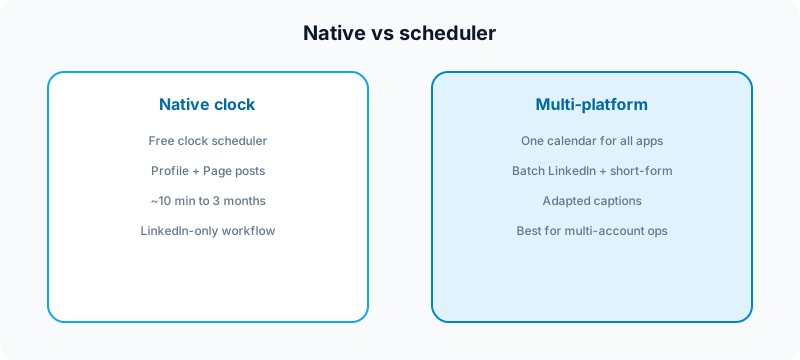
Native scheduling vs third-party schedulers
Both options schedule posts. They solve different jobs.
| Approach | Best for | Trade-off |
|---|---|---|
| Native clock scheduler | Solo creators and Page admins posting only here | One network at a time; limited calendar view |
| Multi-platform scheduler | Creators batching this channel with Instagram, TikTok, X, Bluesky | Requires connected account and review habit |
| Manual publish | Live launches, hiring spikes, news-cycle replies | Harder to stay consistent at scale |
How to schedule a post natively
Labels shift slightly between desktop and mobile, but the workflow matches the Help Center steps.
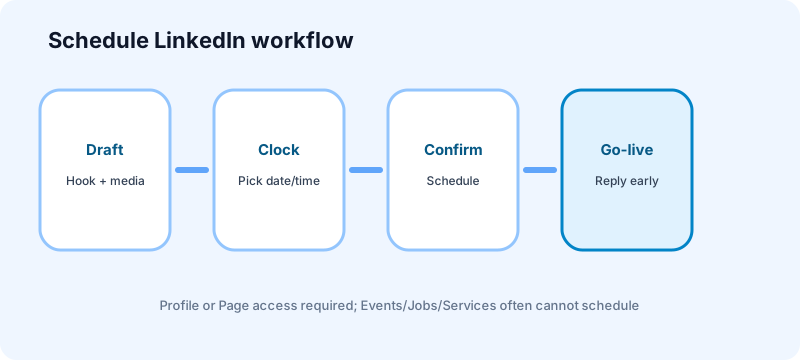
- Open the homepage and click Start a post (or switch to the Page you manage).
- Write the update in the composer. Add images, video, a document (PDF carousel), or a poll if needed.
- Click the clock icon in the lower-right of the composer.
- In Schedule post, pick date and time within the allowed window (about 10 minutes to 3 months).
- Click Next, confirm the scheduled time shown above the post, then click Schedule.
- To review later: open the composer again, click the clock, and choose View all scheduled posts to edit, reschedule, or delete.
- Set a reminder to be online for the first 15–30 minutes after go-live so you can reply to early comments.
Personal profile vs Company Page
Both personal profiles and Company Pages can use native scheduling when you have posting access. If Schedule is missing, check that you are composing as the correct identity (you vs Page) and that the post type is supported. Agency and multi-admin Pages fail most often on wrong identity selection—not on creative quality.
Desktop vs mobile
Desktop is still the most reliable place to batch and review scheduled posts. Mobile scheduling exists in many account builds, but confirm the clock icon and scheduled list in your own app before you depend on it for client work.
What you can and cannot schedule
Know the boundaries before you batch a week of updates.
- Text, image, and video posts: core schedulable use cases.
- Document posts (PDF carousels): usually schedulable—prep slide order and cover title carefully. Strategy: carousel strategy for creators.
- Polls: often supported on the schedule path; verify in your composer before promising a client.
- Events, Jobs, and Services attachments: Help notes these are not supported for scheduling—post those live or remove the attachment.
- Articles / newsletter long-form: treat as a separate publishing path; do not assume feed-post rules match.
- Real-time culture: scheduling evergreen expertise is fine; scheduling a hot reply to breaking news usually is not.
Document posts tip
If you schedule a PDF carousel, lock the cover title and slide order before you set the clock. A scheduled document with tiny text still underperforms—scheduling only chooses the time, not the readability.
When to schedule vs post live
Schedule ahead when:
- The post is evergreen (framework, checklist, case study, carousel tutorial).
- You need a specific hour for a launch, webinar, or hiring push.
- You are traveling or batching a content day and still want updates to appear while you focus elsewhere.
Post live when:
- You need Event, Job, or Services attachments that block scheduling.
- You plan to reply in the moment (AMA threads, launch day, crisis updates).
- The post only makes sense if you are early to a news cycle in your niche.
How third-party scheduling usually works
A multi-platform scheduler connects through official OAuth / Marketing API paths (availability depends on the tool and developer review). You upload media, draft a caption, choose a publish time, and manage the queue beside Instagram, TikTok, YouTube, X, Facebook, Threads, Bluesky, and Pinterest.
That matters when your week looks like this: one insight becomes a document carousel here, an Instagram carousel, a short TikTok, and an X thread—with different hooks and lengths for each network. Copy-pasting the same text everywhere is fast and usually underperforms. Read how to cross-post to multiple platforms for the adaptation layer.
A multi-platform scheduler fits here: queue this channel in the same calendar as your other networks, adapt captions by platform, review before publish, and keep a weekly rhythm without nine tabs. See best social media scheduling tools for creators and best social media scheduler for creators.
Hook, document, and media prep before you queue
The feed rewards clarity in the first lines. Scheduling a blurry hook still fails.
- First two lines: readable without "see more"—one idea, one tension, or one result.
- Document covers: big title text; avoid tiny screenshots that die on mobile.
- Image crop: check how the preview looks on phone before you schedule.
- Link hygiene: if you include a URL, open it once; confirm the preview card is correct.
- Timezone: times standardize to UTC from your device settings—double-check before flights and DST.
- Hashtags: a few relevant tags beat a stuffed footer. This network is not Instagram.
If impressions stay flat after you schedule consistently, diagnose reach separately with this impressions guide.
Common scheduling mistakes
- Wrong identity (posting as you when it should be the Page, or the reverse).
- Assuming Events/Jobs/Services can schedule—they often cannot; plan a live publish instead.
- Timezone drift after travel or a laptop timezone change.
- No go-live reminder for posts that invite debate or hiring replies.
- Document carousels with unreadably small text that look fine on desktop and fail on mobile.
- Scheduling spammy bursts several times a day with thin value—consistency is not the same as noise. See automate without looking robotic.
- Skipping review on team accounts—use social media approval workflow.
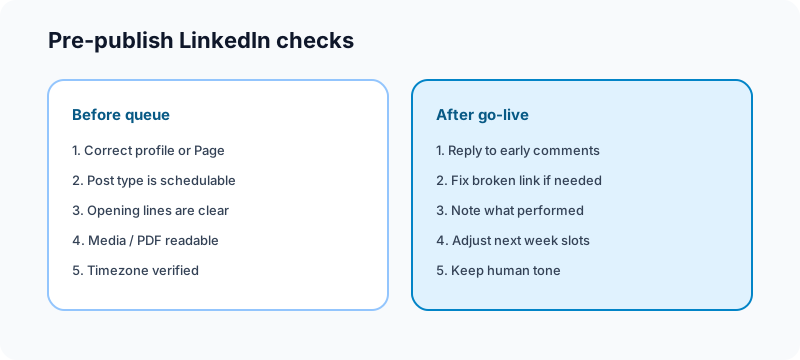
Pre-publish checklist for scheduled posts
- Correct profile or Page selected
- Post type is schedulable (no blocked Event/Job/Services attachment)
- Opening lines clear without expanding
- Media / PDF cover readable on mobile
- Link preview checked (if used)
- Date, time, and device timezone verified
- Reminder set to engage after go-live
Free tools to support B2B content weeks
| Task | Free tool | How it helps |
|---|---|---|
| Plan the week's topics | Growth guide | Map themes before batch day. |
| Turn tips into carousels | Carousel splitter | Repurpose lessons into swipe assets. |
| Keep visual systems coherent | Grid maker | Align brand colors across networks. |
| Draft multi-platform captions | Free tools | Batch long-form copy beside shorter variants. |
Browse the full set on the free tools page.
Related guides
- Carousel strategy for creators
- Post not getting impressions
- Can you schedule Facebook posts?
- Can you schedule TikTok posts?
- Can you schedule Instagram Stories?
- Can you schedule Pinterest posts?
- How to schedule social media posts
FAQ: scheduling LinkedIn posts
Can you schedule LinkedIn posts for free?
Yes. The native clock scheduler is free for eligible personal profiles and Company Pages. Third-party tools are optional when you need a broader multi-platform calendar.
Can you schedule on mobile?
Often yes, depending on your app build. Desktop remains the safest place to batch and review the full scheduled list. Confirm the clock icon and "View all scheduled posts" in your own app before you rely on mobile for client work.
How far in advance can you schedule?
Help states scheduled times must fall within about 10 minutes to 3 months from the current time. For most creators, one to four weeks of planning with a weekly review beats queuing a full quarter of stale takes.
Can you edit a scheduled post?
Yes. Open the scheduled list from the composer clock icon, then reschedule or delete as needed before publish time.
Does scheduling reduce reach?
Scheduling itself is not the problem. Weak opening lines, unreadably small carousel text, bad timing, or no comments after publish hurt more than the publish method. Diagnose flat reach with this impressions guide.
Should new accounts schedule posts?
Warm up manually first. Learn what your audience comments on, then schedule evergreen carousels and frameworks once you have a posting rhythm.
Should I use native scheduling or Fuxux?
Use the native clock tool if you only need simple single-network scheduling. Use Fuxux when you want one workflow for multiple platforms, platform-specific captions, and a clearer content calendar beside this channel.
Where a scheduler fits
Use the native scheduler when you need free single-network auto-publish. Use a multi-platform scheduler when this channel sits inside a creator system that also covers Instagram, TikTok, X, Facebook, Threads, Bluesky, and Pinterest—draft captions, review before publish, and keep one calendar instead of nine tabs. Fuxux helps creators plan that wider queue and adapt captions by platform while the native path handles go-live when you prefer it.
We are not affiliated with LinkedIn, Microsoft, Instagram, Meta, TikTok, or X. Platform names are used to describe creator publishing workflows.
Bottom line
Yes, you can schedule LinkedIn posts in 2026—natively with the clock icon for free on profiles and Pages, typically from about 10 minutes to 3 months ahead. Skip unsupported Event/Job/Services attachments on the schedule path, lock hooks and document covers before you queue, verify timezone, and treat scheduling as consistency infrastructure—not a substitute for posts people actually want to comment on.
Publishing to LinkedIn regularly? See how scheduling works for LinkedIn.
About the author
I build Fuxux, a scheduler that publishes to 14 platforms from one queue. I write about the parts of posting that are actually fiddly — what each platform will and won't let you schedule natively, where the API limits bite, and how to keep a queue running without babysitting it.
Ready to post smarter?
Fuxux handles the scheduling, the formatting, and the AI captions — so you can focus on ideas.
Start free — no credit card