15 LinkedIn Post Templates You Can Copy and Paste
15 copy-and-paste LinkedIn post templates with the blanks marked: lessons, mistakes, how-tos, opinions, hiring, thank-yous and more, plus which to use when.

Disclosure: Independent guide from Fuxux. We are not affiliated with LinkedIn. Product names belong to their owners.
A LinkedIn post template is a fixed structure with blanks: you keep the shape, swap in your own facts, and post. It is the fastest way past the blank box, because the hard decisions (how to open, what order to tell it in, how to end) are already made.
Below are 15 text templates you can copy and paste, each with the blanks marked in [brackets], a filled-in example, and a note on when to use it. They are plain text, so they work in the LinkedIn composer, a notes app, or a scheduler, with no design tool needed.
Quick answer: pick the template that matches what happened this week, replace every [bracket] with a specific detail, cut any line that does not earn its place, and read the first two lines on their own, since that is all people see before "see more". Then post it or schedule it for a weekday morning in your audience's time zone.
How to use these templates
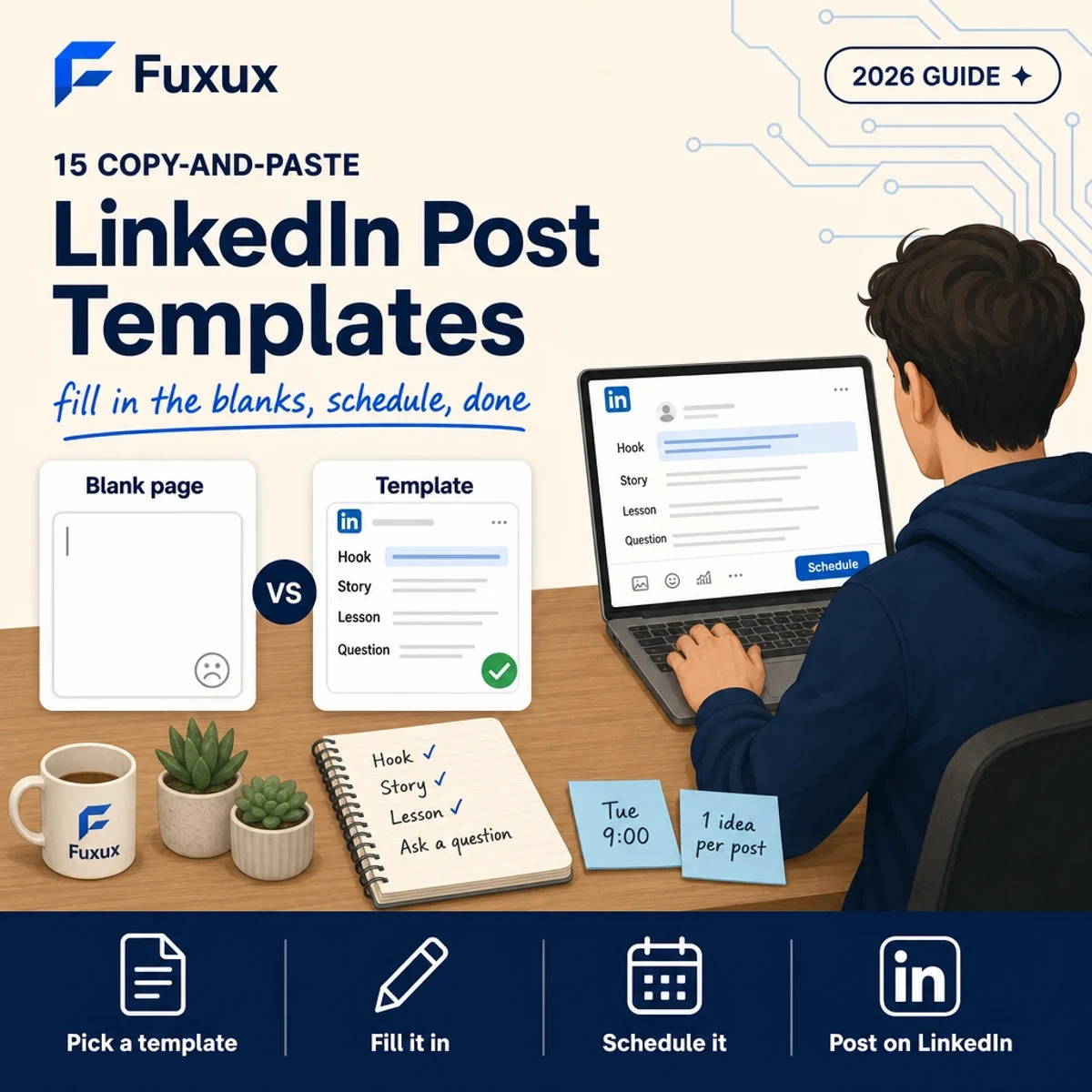
Most of the templates follow the same four-part shape, so it helps to know what each part is for:
- Hook (lines 1-2): the only part most people read before they decide. Put the specific thing first: the number, the mistake, the result, the opinion.
- Story or detail: what actually happened, in short lines. Real names of tools, real amounts of time, real steps.
- Lesson: the one thing a reader can take away and use.
- Question: an easy question at the end that people can answer from their own experience.
Three rules make any template read like you rather than like a template:
- Replace every bracket with something specific. "A client" is weak; "a bakery with two shops" is a post.
- Delete lines freely. A template is a ceiling, not a quota. If the lesson is obvious from the story, cut the lesson line.
- Use one template per post. Mixing three structures in one post is how you end up with something long that says little.
15 LinkedIn post templates (copy and paste)
1. The lesson from this week
Use it when: something at work taught you something. This is the template you will use most.
This week I learned [specific lesson] the hard way.

[What you were doing, in one line.]
[What went differently than you expected.]
[What you did about it.]

The takeaway: [one sentence a reader can use].

Has this happened to you?
Example opening: "This week I learned that a 'quick' data export is never quick if nobody owns the spreadsheet."
2. The mistake I made
Use it when: you got something wrong recently and fixed it. Small and recent beats big and old.
I made a mistake last [week/month]: [the mistake, plainly].

It cost [time / money / a client / a deadline].

What I do now instead:
→ [new habit 1]
→ [new habit 2]

If you [do the same thing], check [the thing that would have saved me].
3. The step-by-step how-to
Use it when: you do a task well that others find slow or confusing.
How I [do task] in [time], step by step:

1. [Step]
2. [Step]
3. [Step]
4. [Step]

The step most people skip: [number], because [reason].

Save this for the next time you [do task].
4. Before and after
Use it when: you improved something visible: a headline, a process, a page, a slide.
Before: [old version, one line].
After: [new version, one line].

What changed: [the one change that mattered].
Why it worked: [reason].

You can try the same thing on your [similar thing] in [time].
5. The opinion with a reason
Use it when: you disagree with a common practice in your field and can say why.
Unpopular opinion: [common practice] is overrated for [type of person/team].

Here is why:
- [Reason from your own work]
- [Reason]

What I do instead: [alternative].

I could be wrong if [condition]. Where do you land?
The "I could be wrong if" line keeps it a discussion rather than a fight, and it is the line people reply to.
6. The question you keep getting
Use it when: customers, candidates or colleagues ask you the same thing.
I get asked "[question]" about [once a week / every call].

Short answer: [answer in one sentence].

Longer answer:
[Detail 1]
[Detail 2]
[The exception, if there is one]

What would you add?
7. The project you just finished
Use it when: you shipped something. Talk about what it took, not just that it exists.
We just shipped [project]. [One line on what it does for the user.]

What it took:
- [Time / people / number of versions]
- [The hardest part]
- [The thing we cut to get it out]

What I would do differently: [one thing].

[Link or "details in the comments"]
8. The numbered list
Use it when: you have several short, related tips. Odd numbers and short lines read easily.
[Number] [things] I wish I knew before [milestone]:

1. [Tip]
2. [Tip]
3. [Tip]
4. [Tip]
5. [Tip]

Number [x] took me [time] to learn.

Which one would you add?
9. The myth vs reality
Use it when: people outside your job have the wrong picture of it.
What people think [job/task] is: [myth].
What it actually is: [reality].

A normal [day/week] looks like:
- [Thing]
- [Thing]
- [Thing]

If you are thinking about [getting into it], know that [honest point].
10. The thank-you
Use it when: someone helped you. Tag them only if they would be happy to be tagged.
A thank-you to [name] for [specific thing they did].

[What the situation was.]
[What they did that most people would not have.]
[What changed because of it.]

If you need [their skill], I recommend them without hesitation.
11. The hiring or "we're looking for" post
Use it when: you are hiring, or looking for a client, partner or collaborator.
We're hiring a [role] to [what they will own, in plain words].

You'd be a fit if you:
- [Must-have]
- [Must-have]
- [Nice-to-have]

What we offer: [salary range / remote / the honest best thing about the job].

Apply here: [link]. Or tag someone who'd be great.
12. The career moment
Use it when: you start a new job, leave one, or reach a milestone. Add a point beyond the news.
After [time] at [company], I'm [starting/leaving/moving to] [new thing].

The thing I'll take with me: [lesson].
The people who made it: [names or teams].

Next: [what you will be doing and who you'd like to meet].
13. The tool or resource recommendation
Use it when: something saved you time and you would recommend it to a friend.
One tool that saved me [time] this month: [tool].

What I use it for: [job].
What it replaced: [old way].
The one downside: [honest limit].

Good for: [who]. Skip it if: [who it is not for].
The "downside" and "skip it if" lines are what make a recommendation believable.
14. The event or course takeaways
Use it when: you went to a talk, webinar, conference or course.
[Number] takeaways from [event/course]:

1. [Takeaway, in your words]
2. [Takeaway]
3. [Takeaway]

The one I'm acting on this week: [number], by [specific action].

Were you there? What did I miss?
15. The simple question post
Use it when: you genuinely want input. Keep it short and answerable.
Quick question for [people in your field]:

[Specific question with two or three options]
A) [option]
B) [option]
C) something else

I'm asking because [real reason]. I'll share what I decide.
LinkedIn also has a built-in poll, but a text question gets answers with reasons, which are more useful to you.
Which template to use, by situation
- Job seeker or student: 1 (lesson), 3 (how-to), 14 (takeaways), 15 (question).
- Employee or specialist: 1, 3, 6 (question you keep getting), 9 (myth vs reality).
- Freelancer or consultant: 4 (before and after), 6, 13 (tool), 2 (mistake).
- Founder: 7 (project shipped), 5 (opinion), 11 (hiring), 2.
- Company page: 3, 7, 10 (thank-you to a customer or partner, with permission), 11.
If you are not sure what to post about at all, start with our list of 15 things to post on LinkedIn, then come back here for the structure.
Formatting that helps on LinkedIn
- Short lines with blank lines between them. Most people read on a phone, and one long paragraph looks like work.
- The first two lines stand alone. A LinkedIn post can be up to 3,000 characters, but only the first two or three lines show before "see more".
- Simple markers for lists: numbers, hyphens or arrows (→). They survive copy and paste everywhere.
- Bold sparingly, if at all. LinkedIn's composer has no bold button; bold text is made of special Unicode characters that screen readers can read badly. If you want it for one key line, our LinkedIn text formatter does it, but use it for one line, not a paragraph.
- Links: put them where they help the reader. Some people put links in the first comment instead; there is no official rule from LinkedIn either way, so do what reads best.
- Hashtags: a few relevant ones at the end at most. They are not what gets a post read.
Mistakes that make a template obvious
- Leaving it generic. "I learned a valuable lesson about leadership" says nothing. The template only works when the brackets hold real details.
- Using the same template every day. Readers notice the pattern within a week. Rotate between three or four.
- Bait endings. "Comment YES if you agree" reads like a trick. Ask a question you actually want answered.
- Every line a one-liner. Short lines help; a whole post of single dramatic sentences reads like a parody. Mix in a normal paragraph.
- A story that ends without a point. If you cannot say the takeaway in one sentence, the post is not ready.
Write a week of posts in one sitting
Templates are most useful in batches. Once a week:
- Write down three things from your week: something you learned, something you finished, a question you were asked.
- Match each one to a template (1, 7 and 6 fit those three).
- Fill in the brackets and cut every line that does not add anything.
- Read only the first two lines of each. If they would not make you click "see more", rewrite them.
- Schedule the three posts for different weekdays, in the morning of your audience's time zone.
That is about an hour for a week of posting, and it removes the daily "what do I post?" moment, which is where most people give up.
Frequently asked questions
What is a LinkedIn post template?
A reusable structure for a post with blanks for your own details: for example, a hook line, three lines of story, a takeaway and a question. You keep the shape and change the content each time.
Are LinkedIn post templates bad for reach?
A template is just a structure; readers react to what you put in it. Posts filled with specific, real details read as original even when the shape is common. The risk is generic filler, not the template.
How long should a LinkedIn post be?
As long as the idea needs, up to the 3,000-character limit. Most of the templates above come out at 80 to 200 words once filled in, which is plenty for one idea.
Can I use these templates for a LinkedIn company page?
Yes. The how-to, project, thank-you and hiring templates suit a page best. Write them in "we" and put real people from the team in them where you can.
Where can I find design templates for LinkedIn posts?
For images and carousels, design tools such as Canva and Adobe Express have galleries of LinkedIn-sized templates. The templates on this page are for the text, which is what people read first. For multi-slide posts, see our LinkedIn carousel guide.
Can I schedule LinkedIn posts written from a template?
Yes. LinkedIn lets you schedule a post from its own composer, for profiles and company pages, and a scheduler lets you queue a week of posts at once. Our guide on scheduling LinkedIn posts covers both.
What to do next
Copy the three templates that fit your week, fill them in now, and schedule them before you close this page. Doing it in one sitting is the whole trick.
When you want those posts to go out on their own, Fuxux schedules LinkedIn posts to your personal profile, alongside your other networks. The Free plan covers 5 posts a month with no card.
About the author
I build Fuxux, a scheduler that publishes to 12 platforms from one queue. I write about the parts of posting that are actually fiddly — what each platform will and won't let you schedule natively, where the API limits bite, and how to keep a queue running without babysitting it.
Ready to post smarter?
Fuxux handles the scheduling, the formatting, and the AI captions — so you can focus on ideas.
Start free — no credit card