How to Plan a Week of Social Media Posts With ChatGPT or Claude
Plan and schedule a week of social media posts from ChatGPT or Claude: the weekly prompt, a review table, a launch-week example, 8 prompts and a 10-minute routine.

ChatGPT and Claude are good at writing posts. Then the real work starts: you copy each one, open five apps, paste, cut it down for X, fix the line breaks for LinkedIn, pick a time, and do it all again tomorrow. That loop is where most posting plans die by Wednesday.
Quick answer: connect your social accounts to a scheduler, add the scheduler to ChatGPT or Claude from their directories (a sign-in, no API key), then paste one weekly prompt: your topics in, a week of drafts and a review table out. You read the drafts in the calendar and tell the assistant which ones to schedule. With Fuxux it works on the free plan, and the whole routine takes about ten minutes a week.
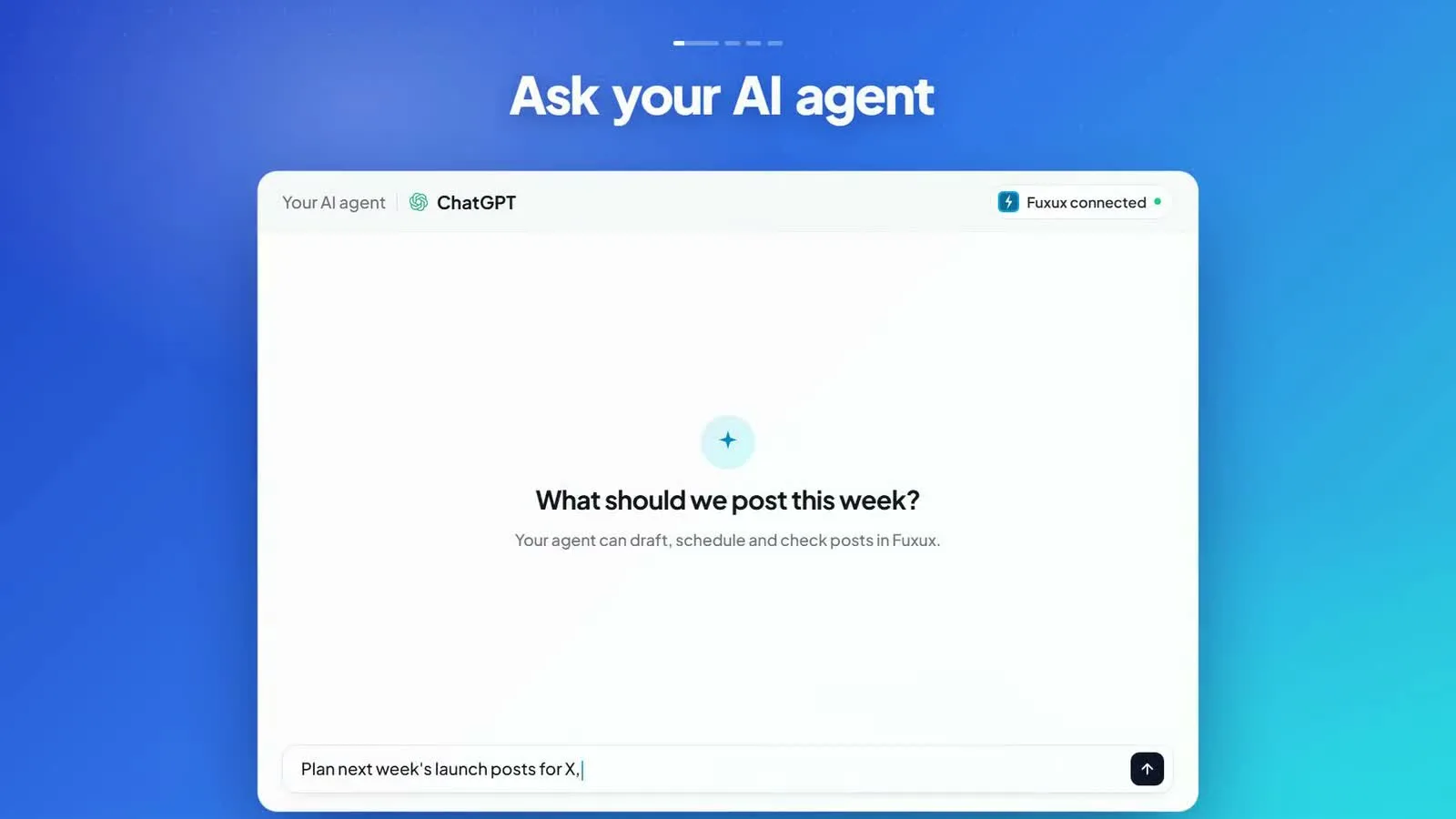
This guide covers the weekly prompt we use, how to review before anything goes out, a launch-week example, a prompt library, a ten-minute routine, what to do when a post fails, and the mistakes that trip people up. If you only need the technical setup, our guide to scheduling posts with MCP covers that in detail, and our comparison of schedulers that work in ChatGPT and Claude helps you pick a tool.
Disclosure: we make Fuxux, the scheduler in the examples. The workflow is the same with any scheduler that has a ChatGPT plugin or a Claude connector.
What you need
- A ChatGPT or Claude account. Adding a custom connector by hand in ChatGPT needs a paid ChatGPT plan; installing a plugin from the directory does not.
- A scheduler account. Fuxux has a free plan: 3 connected accounts and 5 published posts a month, no card. X needs a paid plan.
- The accounts you post to: an Instagram professional account, a LinkedIn profile, Bluesky, Threads, a Telegram channel, a Slack channel and so on.
- About five minutes for the first setup.
Why ChatGPT can't post by itself
An assistant has no access to your Instagram or LinkedIn. To publish, it needs a connector: a small set of tools a scheduler gives it, such as "list my accounts", "create a post" and "schedule it for Tuesday at 9 am". The scheduler holds the permission to post; the assistant only asks it.
Two things follow from that. You connect your social accounts once, in the scheduler, never in the chat. And you can remove the connection at any time, which cuts the assistant's access straight away. It also explains why the results are reliable: the assistant writes, but the scheduler does the posting. It knows each network's rules, checks each caption against the limits, publishes on time and tells you when something failed.
Set it up in three steps
- Connect your accounts in the scheduler. Create a free Fuxux account and connect the networks you post to every week. Each network has its own sign-in screen, so you approve each one yourself. Three well-run accounts beat eight neglected ones.
- Add it to your assistant. In Claude, open Fuxux in the connector directory, choose Connect, sign in and allow access. In ChatGPT, open Plugins, search for Fuxux, install it and connect. Step-by-step guides: Fuxux for Claude and Fuxux for ChatGPT.
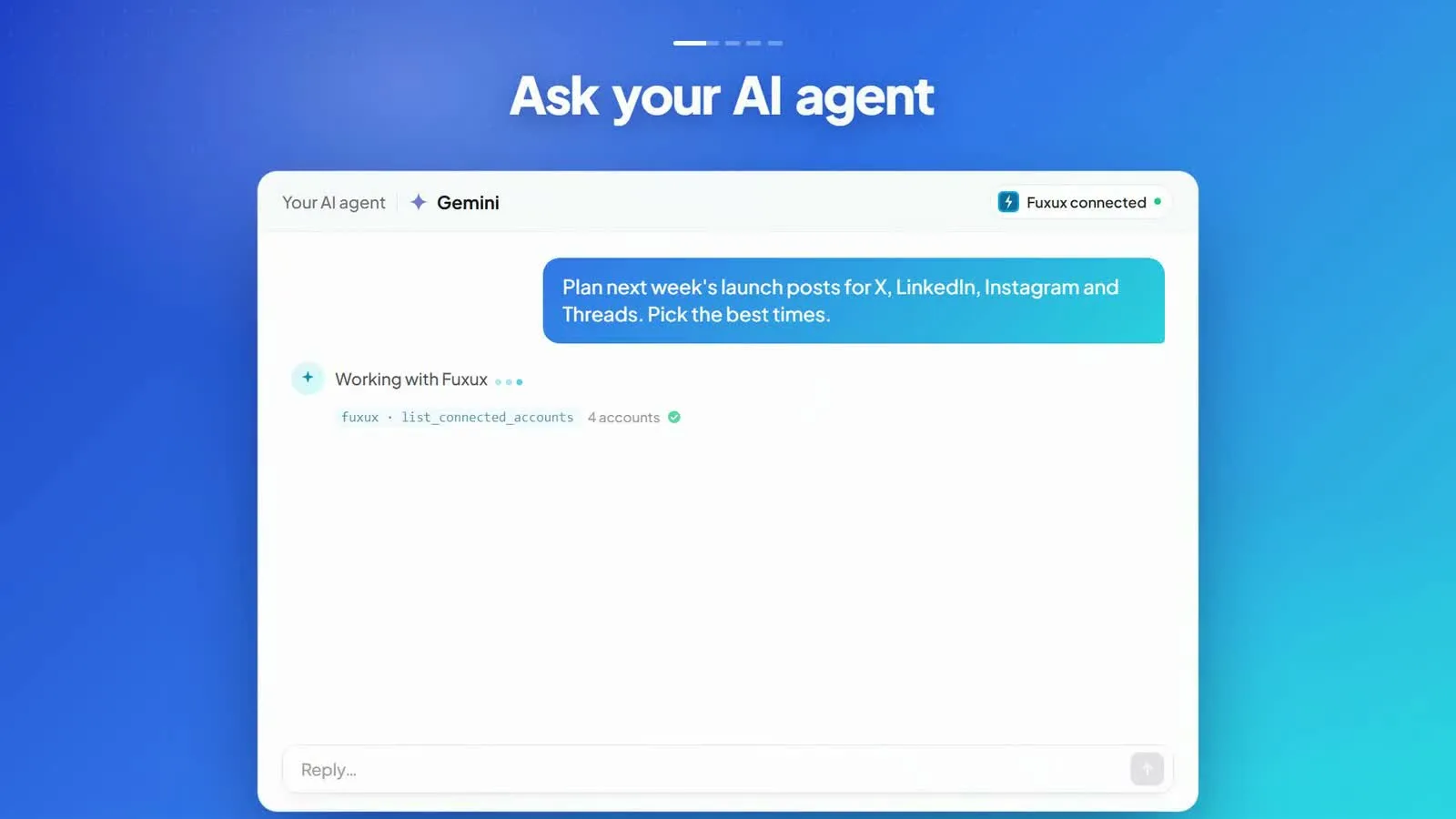
- Test it read-only. Ask "List my connected accounts in Fuxux" (in ChatGPT: "@Fuxux list my connected accounts"). If your accounts come back, you're connected. Don't let it publish anything yet.
The prompt that plans the week
This is the one we use. Paste it and fill in the brackets:
I run [what you do] for [who it's for]. Next week I want to post about: [topic 1], [topic 2], [topic 3].
Write one post per weekday for [LinkedIn and Bluesky]. Make each one fit its network: LinkedIn can be longer with short paragraphs, Bluesky must stay under 300 characters.
Save everything as drafts in Fuxux, scheduled for 9 am my time, Monday to Friday. Don't publish anything.
Then show me a table: day, network, first line, character count.
The table is the important part. You see the whole week in one place before anything goes out, and the character count catches posts that would be cut off.
Three ways to make the output better:
- Give it real material. Paste last week's notes, a changelog, a customer question or a blog post. Specific input gives specific posts.
- Name the voice. "Plain and friendly, no hashtags, no emojis" works better than "engaging".
- Ask for one strong first line per post. On LinkedIn and Instagram most people only see the first line or two before "more".
Review in the calendar, then let it schedule
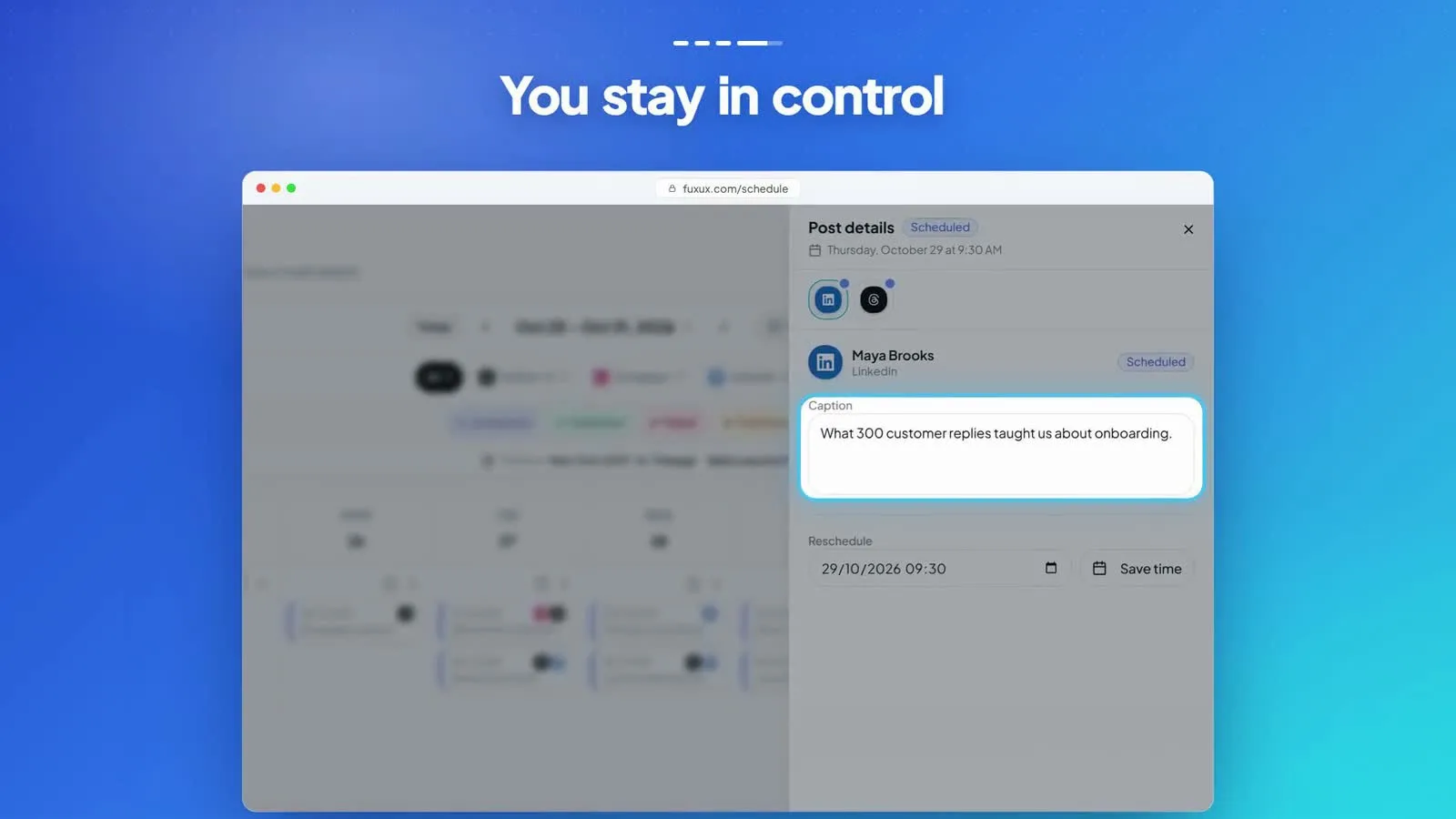
Open your calendar. Everything the assistant created is there as a draft, on the right day and time.
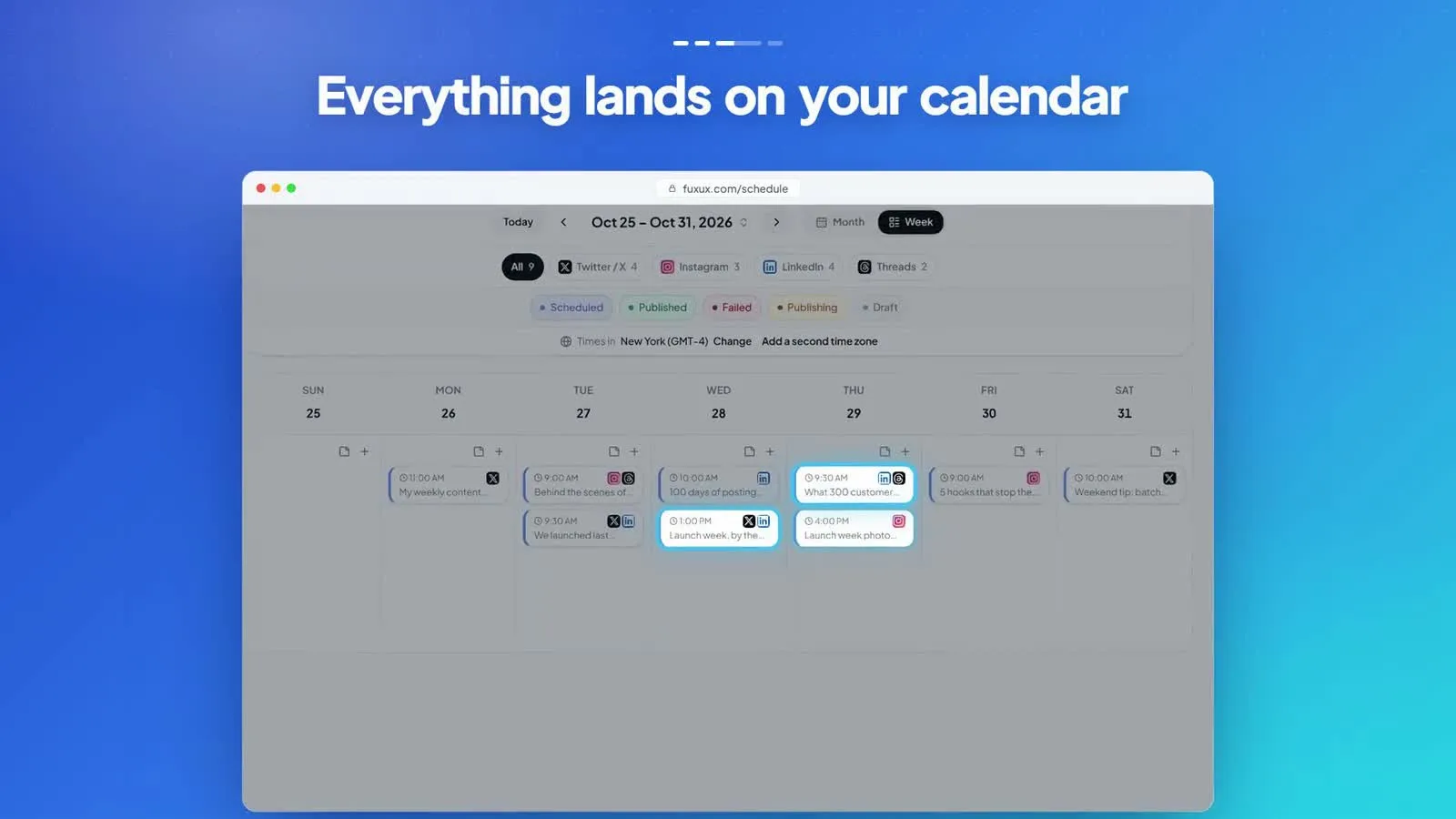
Click a post to read it, change a word or move it. Nothing goes out until you say so. When you're happy, tell the assistant: "The Tuesday and Thursday drafts are approved. Schedule them as they are."
Example: planning a launch week
Here is how a typical session goes. The input is three bullet points from a product update and one customer quote:
We're launching our new onboarding next Tuesday. Notes: [3 bullet points]. A customer said: "[quote]".
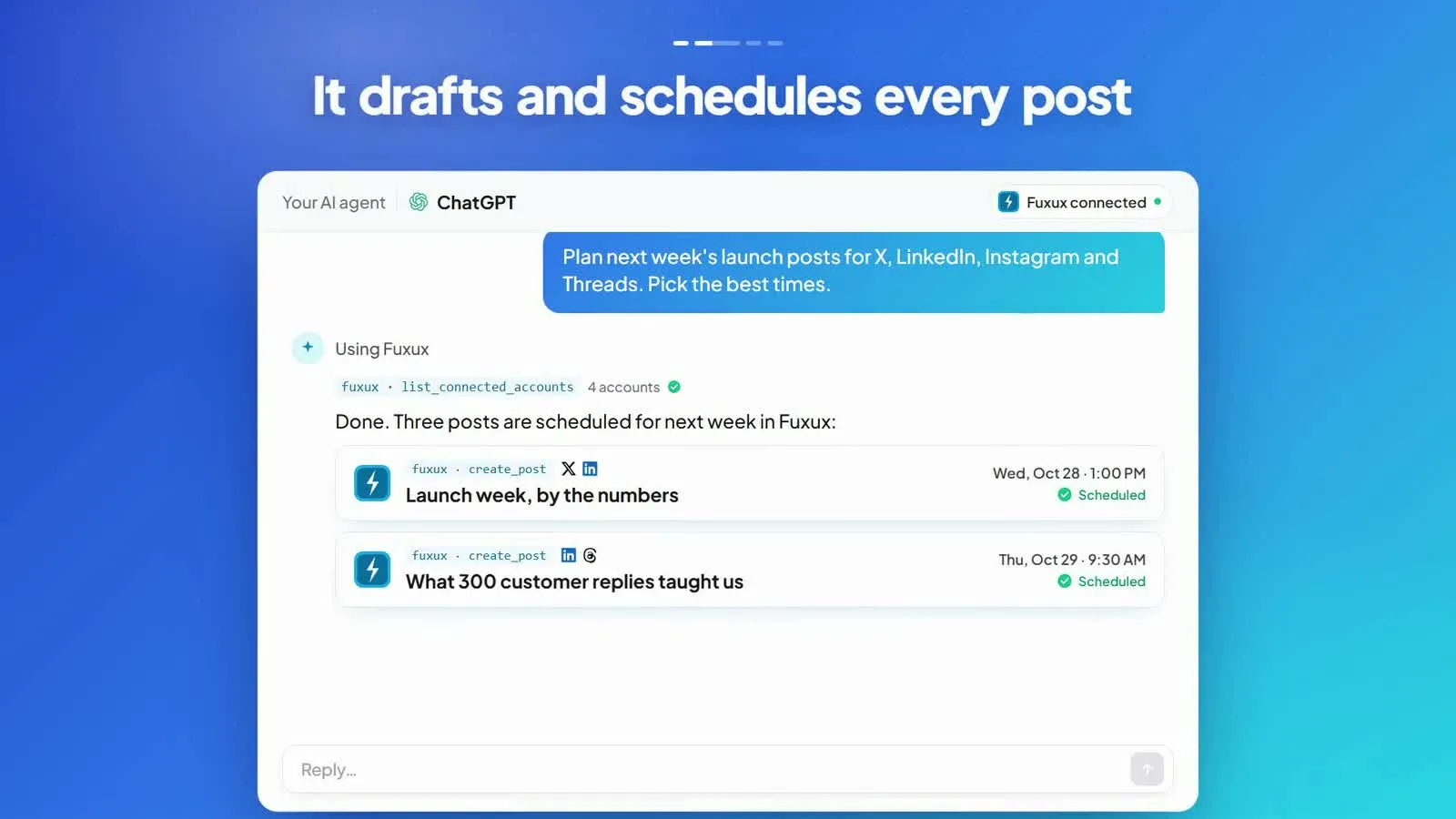
Plan launch week for X, LinkedIn and Threads. One teaser before launch day, the announcement on launch day, a behind-the-scenes post on Wednesday, the customer quote on Thursday, a recap on Friday. Save as drafts at the best weekday times for a US audience, and show me the table.
What comes back is a set of drafts per network and a table like this:
- Mon, X, teaser: "Something we've been fixing for months ships tomorrow."
- Tue, LinkedIn, launch: "Today we're shipping a new onboarding. Here's what changed and why."
- Wed, Threads, behind the scenes: "The first version of this took 9 steps. We cut it to 3."
- Thu, X: the customer quote
- Fri, LinkedIn: a recap with one question at the end
Then you edit by conversation. If the teaser is too vague: "Put one concrete number in the first line." If the quote is too long: "Keep the quote under 20 words." Two or three follow-ups and the week is ready to approve. (These posts illustrate the format; they are not a real customer's.)
One idea, a version for each network
The biggest quality jump comes from not posting the same text everywhere. Write one idea, then let the assistant adapt it: a short, punchy version for X, a longer one with line breaks for LinkedIn, a version under 300 characters for Bluesky.
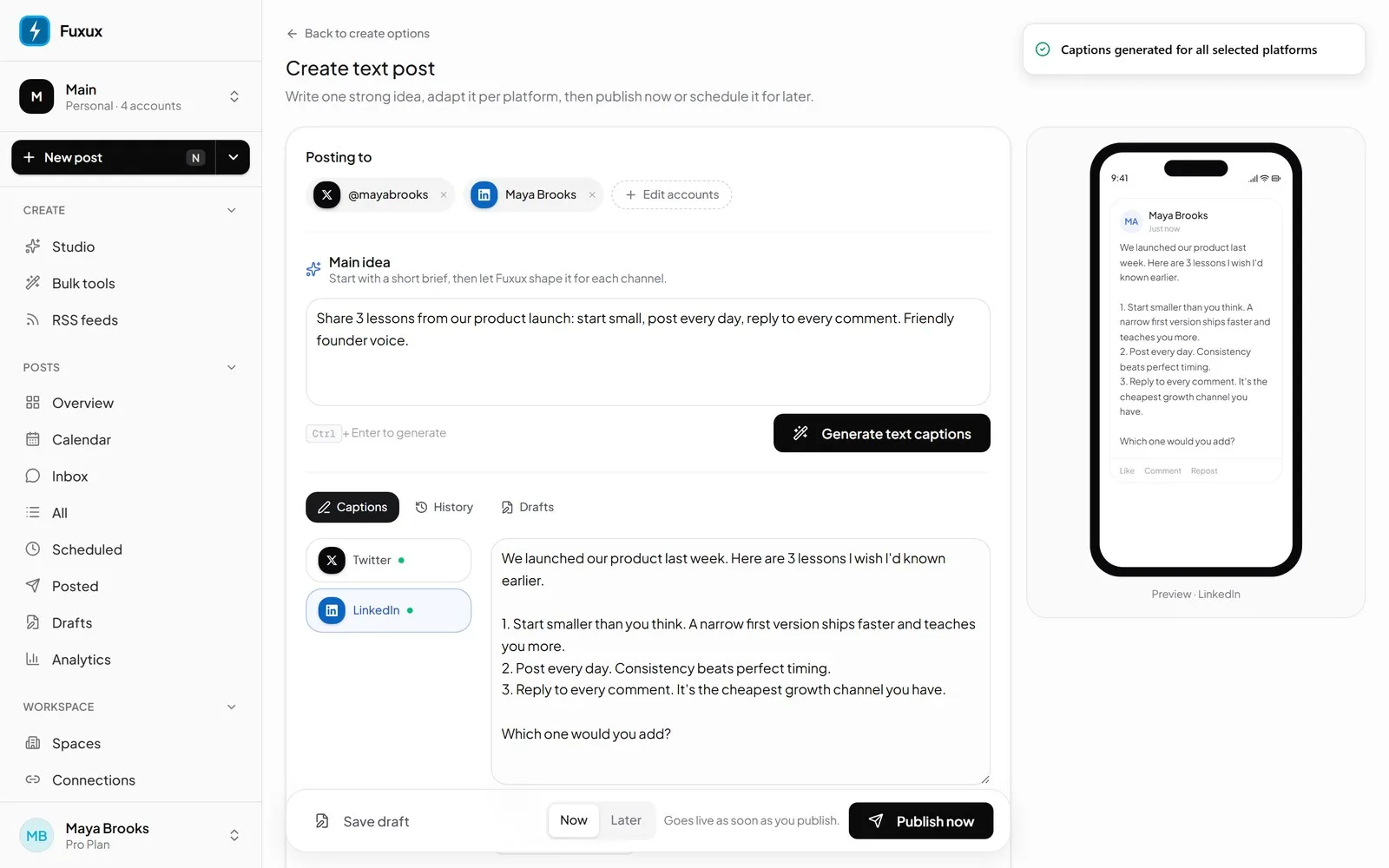
A prompt for that: "Here's the idea: [one or two sentences]. Write a version for X (under 280 characters, no hashtags), LinkedIn (3 short paragraphs and a question at the end) and Bluesky (under 300 characters). Save them as one draft for Thursday at 9 am."
The limits to keep in mind: X 280 characters, Bluesky 300, Threads 500, Instagram 2,200 (about 125 show before "more"), LinkedIn 3,000, and 4,096 for a Telegram text message. Our free character counter checks a draft against all of them at once.
Copy-paste prompt library
The eight prompts we use most. Swap the brackets, keep the structure.
- Plan the week (above): topics in, a week of drafts and a table out.
- Repurpose a blog post: "Here's my latest article: [paste it]. Turn it into 3 LinkedIn posts and 3 X posts, each built on one point from the article. Save as drafts on Mon, Wed and Fri at 9 am."
- Changelog to thread: "Turn this changelog into a short X thread, 4 posts max, plain words, and schedule it for Monday at 10 am."
- Event countdown: "Our webinar is on [date]. Plan 3 posts: one week before, the day before, and one hour before. Include the link in each."
- Fill the gaps: "What days next week have nothing scheduled? Suggest one post for each empty weekday and save them as drafts."
- Move things around: "Move tomorrow's Instagram post to Friday at 9 am."
- Check the queue: "What's scheduled for the rest of the week, and did anything fail?"
- Look back: "What did we publish last week on LinkedIn?"
A ten-minute weekly routine
- Monday, 5 minutes: run the week-planning prompt, read the table, approve what's good.
- Wednesday, 2 minutes: ask "What's scheduled for the rest of the week, and did anything fail?"
- Friday, 3 minutes: look at what worked and feed that into next Monday's prompt.
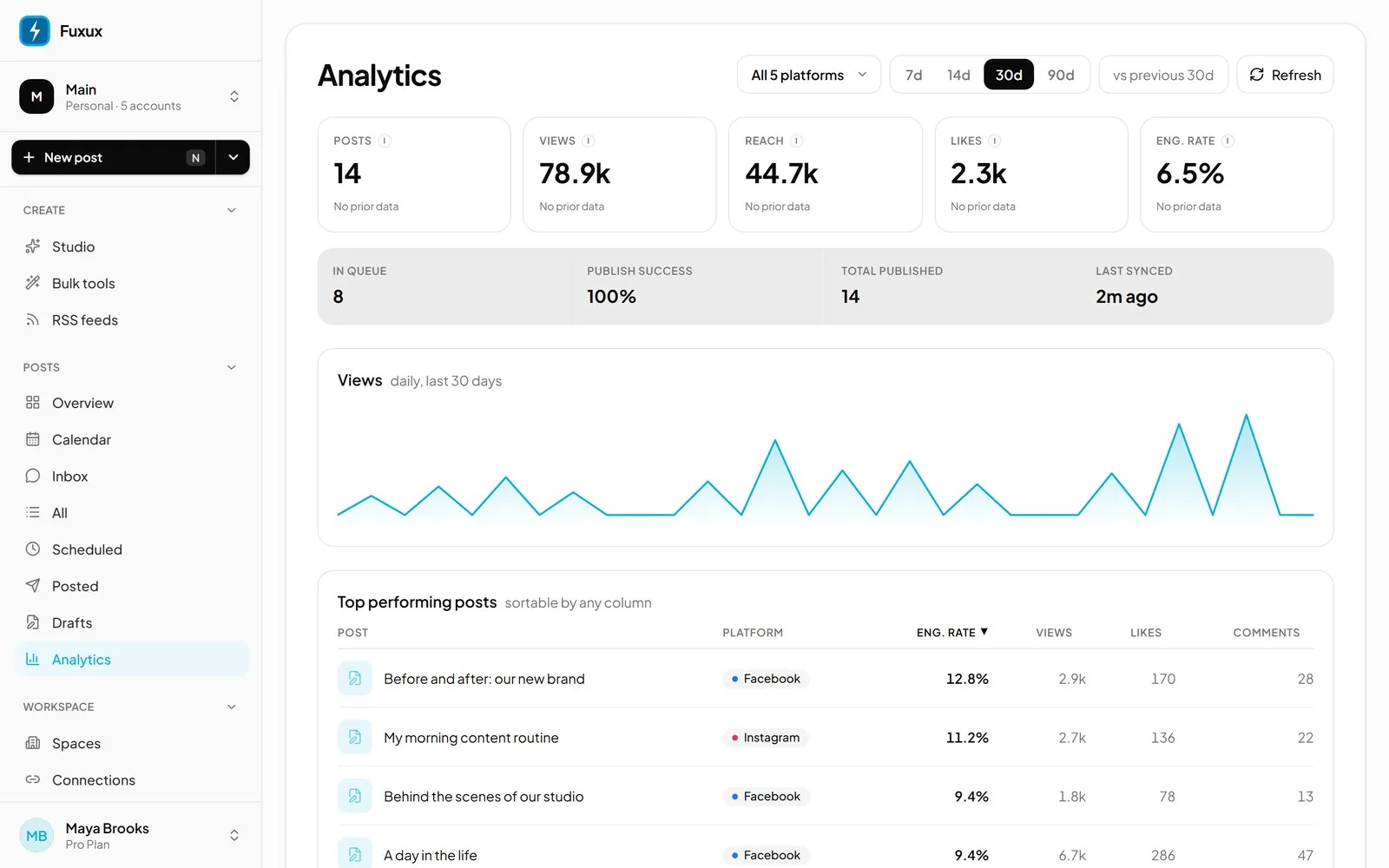
On paid plans, the analytics page shows views and engagement for your posts on the networks that share them, which makes the Friday review quick.
When a post fails
Sometimes a post doesn't go out. The usual reasons are boring: a social account's sign-in expired, an image or video is too big for that network, or a caption is over the limit. Ask "Did any post fail this week? Why?" The assistant can read the error the network returned, so you know whether to reconnect an account, shrink a file or shorten a caption. Then: "Fix the caption for the failed LinkedIn post and reschedule it for tomorrow at 9 am."
Going bigger: a month at once
When a week runs smoothly, two features save the most time.
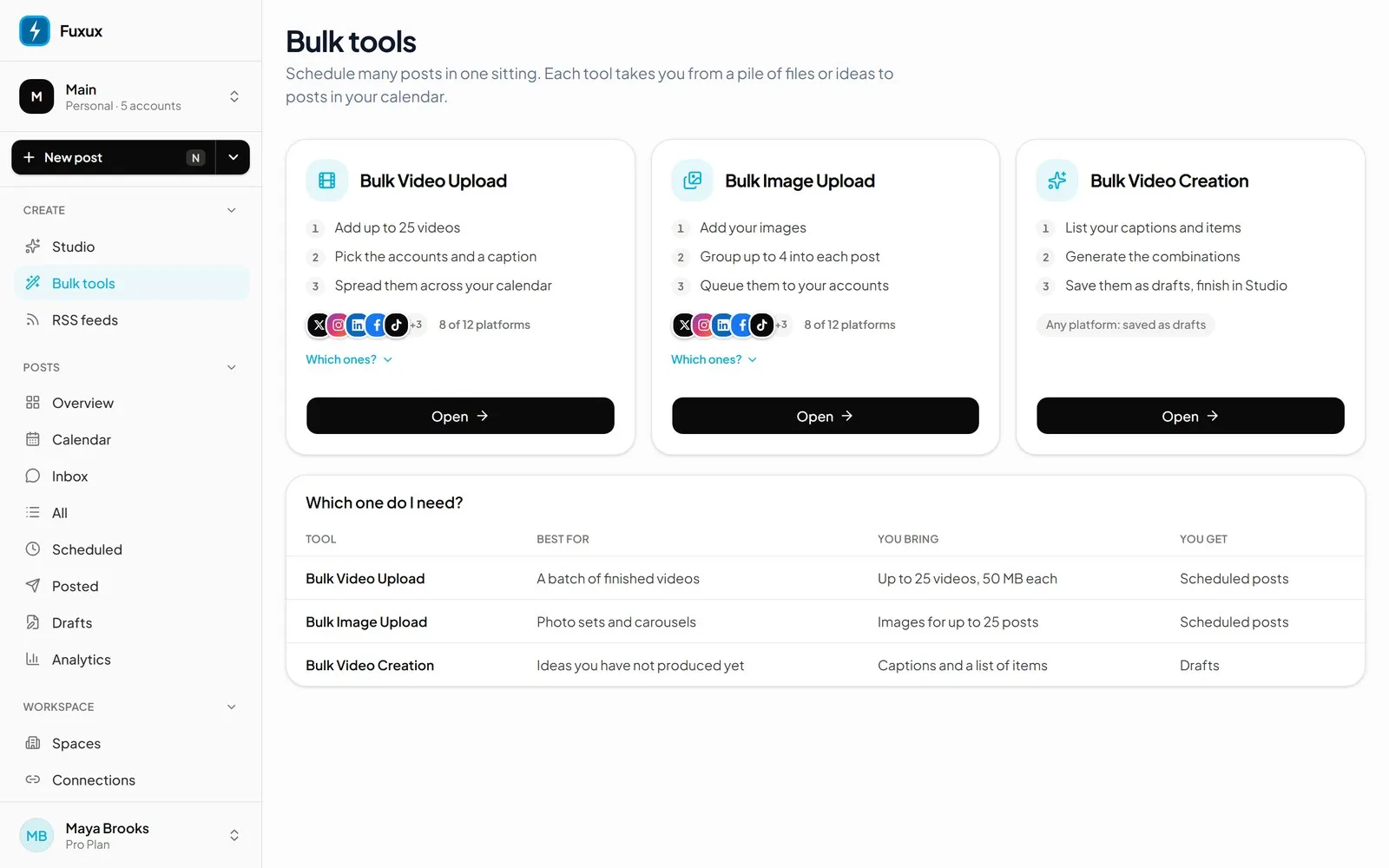
- Bulk tools: upload up to 25 videos at once, or images for up to 25 posts, pick the accounts and spread them across your calendar in one go. They work on every plan; on the free plan the 5 posts a month still apply.
- RSS auto-posting (1 feed on the free plan): paste your blog's feed and every new article posts itself, with its image, to up to 10 networks, Telegram and Slack included, or waits as a draft for your OK.
Your assistant then handles everything in between: the ideas, the threads, the posts about this week's news.
Mistakes to avoid
- Letting it publish on day one. Start with "always save posts as drafts". Publishing is one of the tools, so say it out loud.
- One caption for every network. Ask for one version per network, with the limits in the prompt.
- Forgetting time zones. Say "9 am my time" and check the first scheduled post in the calendar.
- Instagram on a personal account. Scheduling needs a professional (creator or business) account.
- Counting accounts instead of posts. On a free plan, one post sent to four networks uses four posts.
- Vague prompts. "Write some posts about our product" gives generic posts. Paste real material and name the audience.
- Never looking back. The routine only gets better if Friday's review feeds Monday's prompt.
FAQ
Can ChatGPT plan and schedule a week of social media posts?
Yes, once a scheduler is connected to it. ChatGPT writes the posts and the scheduler saves them as drafts or schedules them on your calendar. Without a connected scheduler, ChatGPT can only write text for you to copy.
Is it safe to let an AI post for me?
Start with drafts and review them. The assistant only gets the tools the scheduler exposes, it can only post to accounts you connected, and you can disconnect it from the assistant's settings or the scheduler at any time.
Do I need an API key?
No. Adding the scheduler from ChatGPT's plugin directory or Claude's connector directory uses a normal sign-in. API keys are only for developer tools and scripts.
Does it work on my phone?
Claude's connector works in the Claude app on mobile. In ChatGPT, install the plugin on the web first.
Which networks can it post to?
Fuxux posts to 14: Instagram, TikTok, YouTube, X, Facebook, LinkedIn, Threads, Pinterest, Bluesky, Discord, Twitch, Kick, Telegram and Slack.
How many posts can I schedule for free?
Fuxux's free plan publishes 5 posts a month across 3 connected accounts, and each network a post goes to counts as one. Drafts don't count until they publish.
What this changes
The writing was never the slow part. The copy, paste, resize, schedule loop was. With a connector, the assistant does the whole loop and you keep the one part that needs you: deciding what's worth posting, and approving it.
To try it, follow the setup for Claude or ChatGPT. The free plan needs no card.
About the author
I build Fuxux, a scheduler that publishes to 14 platforms from one queue. I write about the parts of posting that are actually fiddly — what each platform will and won't let you schedule natively, where the API limits bite, and how to keep a queue running without babysitting it.
Ready to post smarter?
Fuxux handles the scheduling, the formatting, and the AI captions — so you can focus on ideas.
Start free — no credit card