How to Schedule Social Media Posts with MCP (Claude, Cursor)
Connect Claude or Cursor to a scheduler's MCP server, then schedule posts in plain language. Setup, example prompts, limits, and a drafts-first workflow.

Disclosure: Independent guide from Fuxux. We build the MCP server described here. We are not affiliated with Anthropic, Cursor, or the social platforms mentioned. Product names belong to their owners.
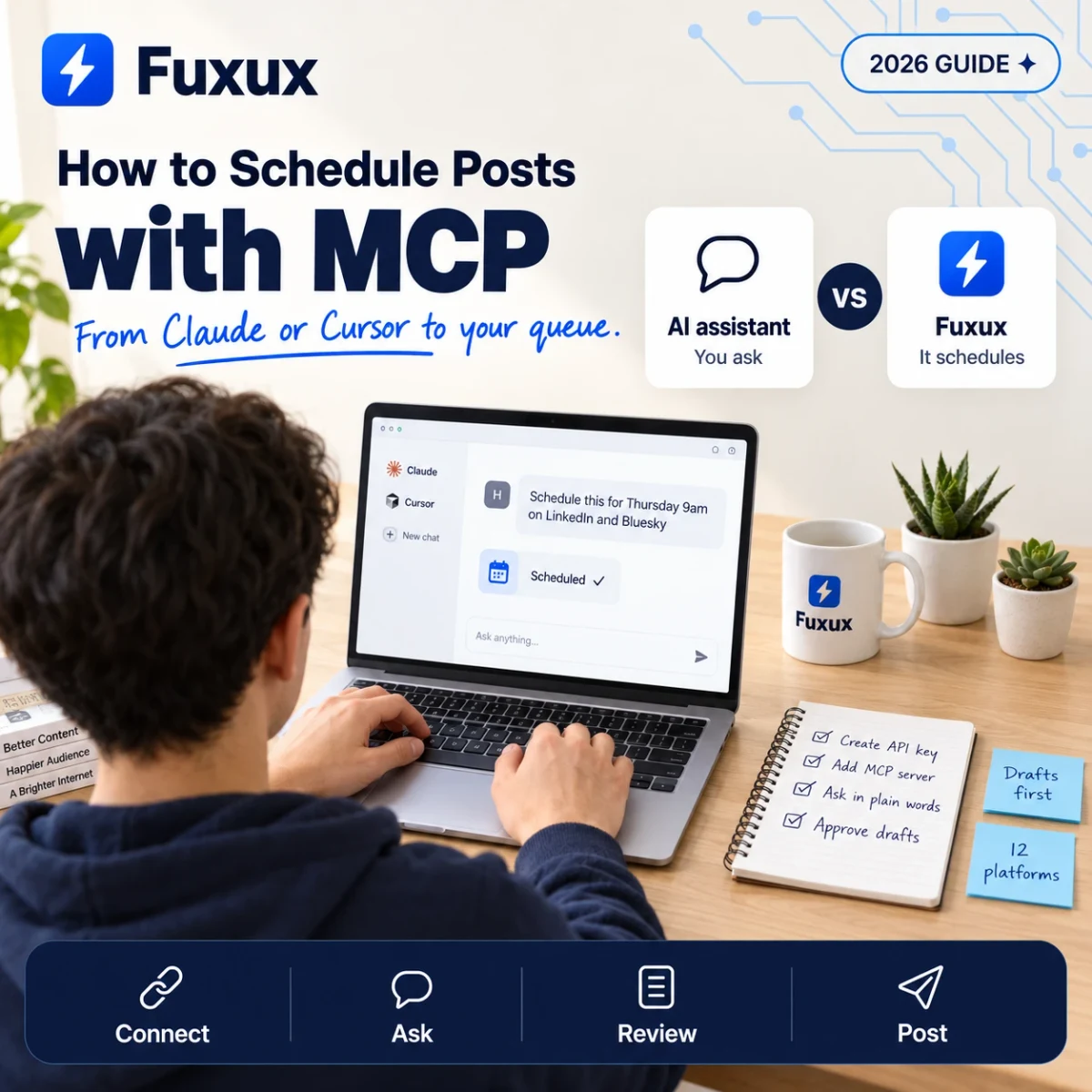
Yes, you can schedule social media posts with MCP. You connect an AI client such as Claude or Cursor to a scheduler that runs an MCP server, and from then on you can say "schedule this for Thursday at 9am on LinkedIn and Bluesky" in plain words. The client calls the scheduler's tools, the scheduler holds the post in its queue, and it publishes at the time you asked for.
The part most write-ups skip is what MCP does not do. It does not log in to Instagram for you, it does not invent access to accounts you have not connected, and it does not get around platform rules. It is a remote control for a scheduler you already use, nothing more. That is also why it is safe enough to hand to an agent.
This guide uses Fuxux's hosted MCP server for the worked examples, because that is the one we can describe exactly. The method is the same for any scheduler that offers one. For the non-MCP basics, start with how to schedule social media posts.
Quick answer: get an API key from a scheduler with an MCP server, add the server to your AI client with that key, check the connection, then ask in plain language. Have the agent save drafts first and publish only what you approve. Expect the same platform rules as posting by hand: Instagram still needs an image or video, and character limits still apply.
What MCP is, in one paragraph
MCP (Model Context Protocol) is an open standard that lets an AI client call tools on another system. A scheduler exposes a small set of tools, for example "list my accounts", "create a post", "show the queue". Your AI client reads that list and decides which tool to call when you ask for something. You never write API requests yourself, and the model never sees your social passwords, because the scheduler keeps the platform connections on its side.
What you need before you start
- A scheduler with an MCP server. For Fuxux, the API key route in this guide needs a paid plan with the API add-on ($5 a month). Clients that support MCP sign-in, such as Claude, can also connect by signing in on any plan, with no key.
- Your social accounts connected in the scheduler. The agent can only post to accounts you have already connected there.
- An API key. Fuxux keys start with
fx_live_and are shown once. Create one key per client, so you can revoke one without disconnecting the others. - An MCP client. Claude Code, Claude Desktop, Cursor and Manus all work. Any client that can talk to a remote MCP server over HTTP and send an Authorization header will do.
Step 1: add the server to your client
Fuxux's server lives at https://www.fuxux.com/api/mcp and uses Streamable HTTP. Every request carries your key in an Authorization: Bearer header.
Claude Code. Put the key in an environment variable called FUXUX_API_KEY, then run:
claude mcp add --transport http fuxux https://www.fuxux.com/api/mcp --header "Authorization: Bearer $FUXUX_API_KEY"Cursor. Set the same environment variable and add the server to ~/.cursor/mcp.json with the URL above and the Authorization header. There is a one-click button and the exact file in the MCP setup guide.
Claude Desktop and other clients that only speak stdio. Use the mcp-remote bridge, which needs Node.js. The ready-to-paste config is in the same setup guide.
Manus and Cue. Add Fuxux as a custom MCP connector with the endpoint and header. The values are in the Cue and Manus guide.
Keep the key in an environment variable or your client's secret store. Do not paste it into a config file that you commit or share.
Step 2: check the connection
Ask the assistant something that cannot do any harm:
Use Fuxux to check who I am and list my connected accounts.Behind that sentence the client calls two tools: whoami, which confirms the key works and shows your plan, and list_connected_accounts, which returns the accounts the agent is allowed to post to. If you get a 401, the key is wrong or revoked. If you get a 403, the API add-on is not active.
Step 3: schedule a post in plain language
Now ask for what you actually want:
Schedule a post for next Tuesday at 9:00 Madrid time on LinkedIn and Bluesky.
LinkedIn: three short paragraphs about our new onboarding flow, no hashtags.
Bluesky: one sentence under 300 characters with the same point.
Save it as a draft first and show me both captions.
The agent calls create_post with one caption per platform. If you include a time it becomes scheduled_at; if you ask for a draft it sets draft: true; if you give neither, the post publishes immediately. That last case is the one to be careful with, which is why the example asks for a draft.
Three details make these requests work the first time:
- Say the time zone. "9am" without a zone leaves the model guessing. Name a city or an offset.
- Give each platform its own instruction. One caption pasted everywhere is the thing people notice. A sentence per network is enough.
- Name the account when you have several. If two LinkedIn accounts are connected, say which one. Otherwise the post goes to the first connected account on that platform.
The eight things an agent can do
whoami: check the key and read your plan.list_connected_accounts: see which accounts are available.get_dashboard: stats, upcoming posts, and accounts that need attention.list_posts: the queue, filtered by month or by status (scheduled, published, draft, failed).create_post: publish now, schedule, or save a draft.get_post: one post with its per-platform captions.update_post: reschedule, edit captions, or replace media on a draft or scheduled post.delete_post: remove a post from the queue. It does not delete anything already published on the platform.
That list is deliberately short. Billing, API keys, team settings and connecting new accounts are not exposed, so an agent that misreads a request cannot change your plan or add an account.
What MCP will not do for you
- It does not bypass platform rules. Instagram still needs an image or video. X still has its character limit. When a rule blocks a post, the tool returns the reason, and a good agent tells you rather than retrying.
- It does not cover every platform. Fuxux's MCP server posts to 12 platforms: X, Instagram, LinkedIn, Facebook, TikTok, YouTube, Bluesky, Threads, Pinterest, Discord, Kick and Twitch. Reddit posts are created in the web app only, by a person.
- It does not make media. You pass links to images or video that already exist. The agent can write the caption; it cannot shoot the photo.
- It does not replace your judgement. An agent will happily schedule thirty posts in a row. Whether thirty posts should go out is still your call.
A safe way to work: drafts first, then approve
The workflow that holds up over months is boring on purpose:
- Ask the agent to create the week's posts as drafts.
- Read them in the scheduler's calendar, where you see every platform's version side by side.
- Fix what needs fixing, either by hand or by asking the agent to
update_post. - Only then ask it to schedule the approved ones.
This costs you two minutes and removes the failure everyone worries about, an agent publishing something you never read. If you work with a team, the same idea is in our approval workflow guide.
Prompts that work well
- "Show me what is scheduled for this week and flag any day with nothing going out."
- "Move Thursday's LinkedIn post to Friday at the same time."
- "Here is a blog post. Draft one LinkedIn post and one Threads post from it, different angles, and save both as drafts."
- "List posts that failed this month and tell me why each one failed."
- "Which of my connected accounts need attention?"
Notice that most of these are about the queue, not about writing. That is where an agent saves real time: checking, moving and tidying, the chores you would otherwise do by clicking through a calendar.
Limits and good agent behaviour
The server allows 120 requests a minute per key and 300 a minute per account. A normal conversation never gets near that. A badly written loop does.
- Do not poll. Publishing settles within minutes. Checking a post's status once a minute is plenty; checking it in a tight loop is how agents get rate limited.
- Read the error. When a call is refused, the message says why: a missing image, a caption over the limit, an account that needs reconnecting.
- One key per client. If a laptop is lost or a tool misbehaves, you revoke that one key and everything else keeps working.
MCP, the API, or the calendar: which to use
- The calendar is best when you are planning a week by eye and want to see everything at once.
- MCP is best when you are already working in an AI client and want to queue or tidy posts without leaving it.
- The REST API is best for fixed automations with no model in the loop, for example "post every new blog article". The same actions are in the API reference.
They are three doors into the same queue. A post drafted by an agent shows up in the calendar, and a post you drag to another day in the calendar is what the agent sees next time it lists the queue.
Troubleshooting
- 401 or "Missing or invalid Authorization": the key was mistyped, rotated or revoked. Check the
Bearerprefix and the space after it. - 403, API access required: the API add-on is not active on the account.
- "Connect at least one account": you asked for a platform with no connected account. Connect it in the scheduler first.
- The agent posted to the wrong account: name the account in your request, or ask the agent to list accounts and confirm before creating the post.
- Rate limited: wait the number of seconds the tool reports, and stop any loop that is checking status.
Bottom line
Scheduling social media posts with MCP comes down to four steps: connect your accounts in a scheduler, create an API key, add the scheduler's MCP server to your AI client, and ask in plain language. Keep the agent on drafts until you have read what it wrote, give each platform its own instruction, and let it do the queue chores it is good at. Setup details for every client are in the MCP setup guide, and the overview is on the MCP page.
About the author
I build Fuxux, a scheduler that publishes to 14 platforms from one queue. I write about the parts of posting that are actually fiddly — what each platform will and won't let you schedule natively, where the API limits bite, and how to keep a queue running without babysitting it.
Ready to post smarter?
Fuxux handles the scheduling, the formatting, and the AI captions — so you can focus on ideas.
Start free — no credit card