Post your RSS feed to a Slack channel automatically
Fuxux posts every new article from your blog, newsletter or industry news to a Slack channel, with its image, free on the Free plan. One permission on Slack's own install screen, and nothing to run.
No card needed. Works with WordPress, Substack, Medium, Ghost and any RSS or Atom feed.
1. Connect your channel
- 1
Click Connect Slack
In Fuxux, open Accounts and choose Slack. You're taken to Slack's own install screen.
- 2
Pick the channel
Choose the workspace and the channel new articles should go to. Fuxux asks for one permission: posting to that channel.
- 3
Allow
The channel shows up under Accounts, ready for a feed or any post you write. Connect Slack again for each extra channel.
Fuxux can only post to the channel you picked. It can't read messages, members or other channels.
2. Add your feed
- 1
Paste your feed
Your RSS or Atom feed, or just your site's address: Fuxux finds the feed and shows what's in it.
- 2
Tick your Slack channel
Choose title + link or title + summary + link, an optional line for every post, and words to skip.
- 3
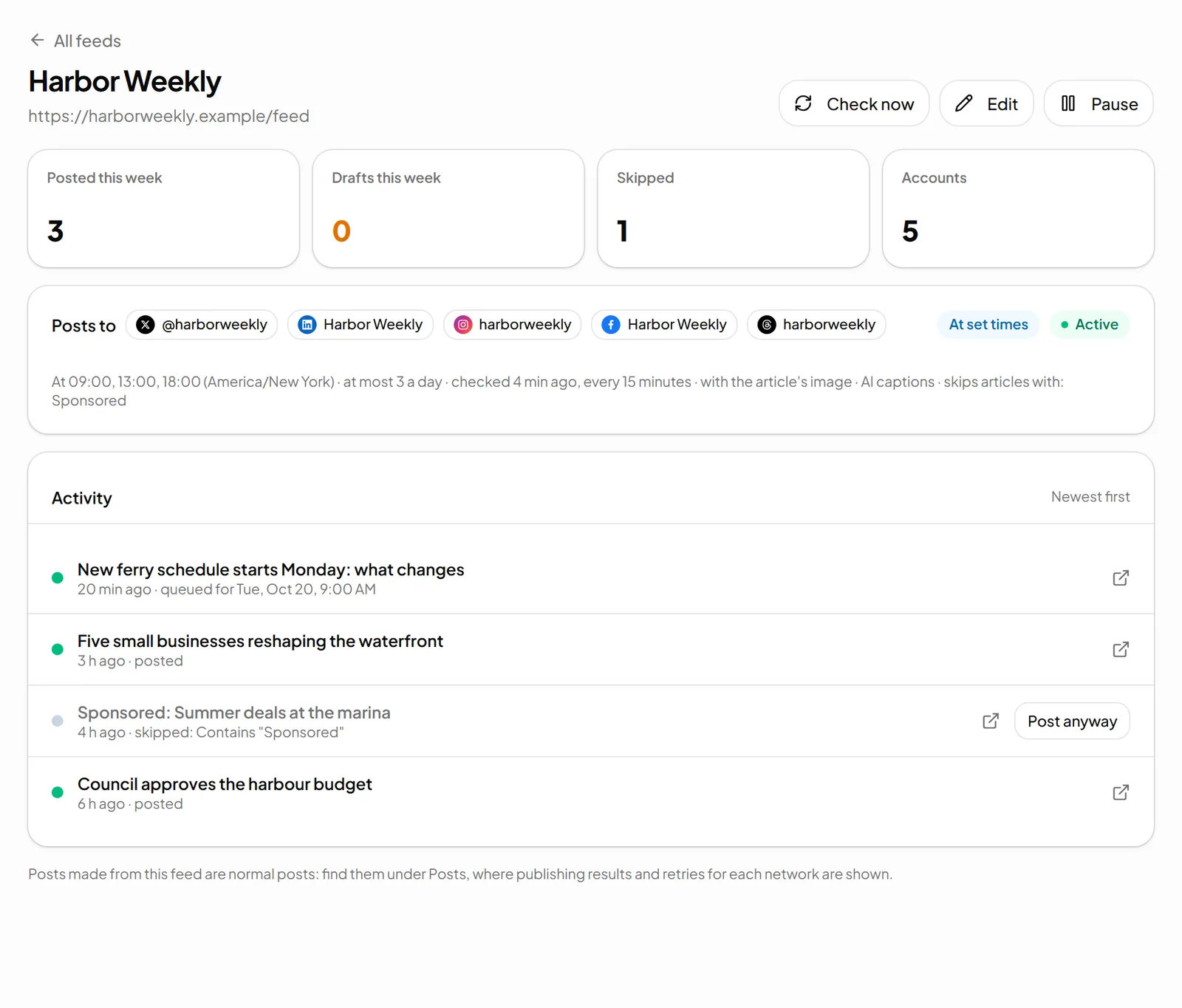
New articles post themselves
Each new article goes to the channel on its own, at the times you set, or waits as a draft for your OK.
What lands in your channel
The article's title, and its summary if you want it, with the link kept whole. Up to 4,000 characters, the size Slack recommends for one message.
With the article's image
With the image turned on, it's shown in the message under the text, loaded from the article's public image URL.
Now, at set times, or as drafts
Post as soon as an article is found, at the times you choose in your time zone, or save it for approval.
A daily limit and skip words
Cap how many posts a feed makes a day, and skip articles with words like “Sponsored” or “Correction”.
An AI caption for Slack
On paid plans, a plain, professional one- or two-sentence heads-up for a work channel, no hashtags.
No surprise pings
Feed text is escaped, so an article can't trigger @channel or @here, or hide a link behind other text.
Only new articles, once
What's in the feed when you add it is never posted, and no article is posted twice.
Why not Slack's own RSS app?
Slack's RSS app and automation tools can post a feed too. Fuxux is for when you want more control over each post (title only or with summary, set times, a daily cap, skip words, drafts to approve) or when the same article should also go to Telegram, Discord, X, LinkedIn, Facebook, Threads, Bluesky, Instagram or Pinterest, with text that fits each one.
Setting up the Slack app itself is covered step by step on Fuxux for Slack, and the same connection works for scheduling Slack messages you write yourself.
Feeds on every plan
| Plan | Feeds | Checked | Posts |
|---|---|---|---|
| Free | 1 | Every hour | 5 posts a month, no card |
| Creator | 5 | Every 15 minutes | Unlimited posts |
| Growth | 15 | Every 15 minutes | Unlimited posts |
| Pro | 50 | Every 15 minutes | Unlimited posts, team members |
Feeds are per space. AI captions are on paid plans. Compare plans
RSS to Slack FAQ
Is there a free way to post an RSS feed to Slack?
Yes. Fuxux posts new articles from your feed to a Slack channel, and the Free plan, with no card, includes 1 feed checked every hour. You pick the channel on Slack's own install screen; there is no bot or script to run.
How do I post an RSS feed to a Slack channel automatically?
Connect Slack in Fuxux and choose the channel on Slack's own install screen, then add your feed under Feeds and tick that channel. From then on, every new article in the feed is posted to the channel, as soon as it's found, at set times you choose, or as a draft for you to approve.
What can Fuxux do in my Slack workspace?
Only post to the channel you picked. Fuxux asks Slack for a single permission, an incoming webhook for that channel, so it can't read messages, see members or post anywhere else. Removing the app in Slack disconnects it. If your workspace requires approval for new apps, an admin approves it first.
What does the post look like in Slack?
A message with the article's title, and its summary if you want it, plus the link, up to 4,000 characters, with the article's image shown in the message. Text from the feed is escaped, so an article can never ping @channel or hide a link behind different text.
How fast do new articles reach Slack?
Feeds are checked every 15 minutes on paid plans and every hour on the Free plan, and you can check a feed at once with the Check now button. Up to 5 new articles are taken per check. Articles already in the feed when you add it are never posted, and no article is posted twice.
Is RSS to Slack free?
Yes, on the Free plan, with no card: 1 feed, checked every hour, and its posts count toward the Free plan's 5 published posts a month (each channel a post goes to counts as one). When those are used, new articles are skipped until the next month or an upgrade. Paid plans have more feeds (5 on Creator, 15 on Growth, 50 on Pro), unlimited posts, checks every 15 minutes and optional AI captions.
Can the same feed post to more channels or apps?
Yes. Connect Slack again for each extra channel (one connection each) and tick them on the feed. The same feed can also post to Telegram, Discord, X, LinkedIn, Facebook, Threads, Bluesky, Instagram and Pinterest, each with text that fits it.
Let your next article reach your team on its own
Connect Slack and add your feed in a few minutes. The Free plan includes 1 feed, no card needed.
Start freeRelated: RSS auto-posting · RSS to Telegram · RSS to Discord · Fuxux for Slack · Pricing