Can You Schedule YouTube Videos? 2026 Guide
Yes — YouTube Studio schedules for free, up to 12 months out. The Studio vs app mix-up, Shorts scheduling, Premieres vs Schedule, and mistakes to avoid.

Disclosure: Independent guide from Fuxux. We are not affiliated with YouTube, Google, or third-party tools mentioned in this article. Product names belong to their owners.
Yes — YouTube has native scheduling built into Studio, and it is free for every channel regardless of subscriber count or monetization status. Upload your video, choose Schedule instead of Publish on the visibility screen, set a date and time, and YouTube holds it privately until that moment arrives.
The part that trips creators up is where scheduling actually lives. It is a YouTube Studio feature, not a YouTube app feature — the consumer app you watch videos in has no scheduling option at all. That single mix-up is behind most of the "I can't find scheduling on YouTube" questions online.
Pair this guide with our YouTube title length guide, can you schedule TikTok posts, and how to schedule social media posts so upload timing, titles, and cadence work together.
Quick answer: yes—upload in YouTube Studio (desktop or the Studio app), set visibility to Schedule, pick a date, time, and timezone. You can schedule up to 12 months out. Shorts use the exact same flow as long-form video. Use a multi-platform scheduler when YouTube sits beside Instagram, TikTok, X, and Threads in the same weekly batch.
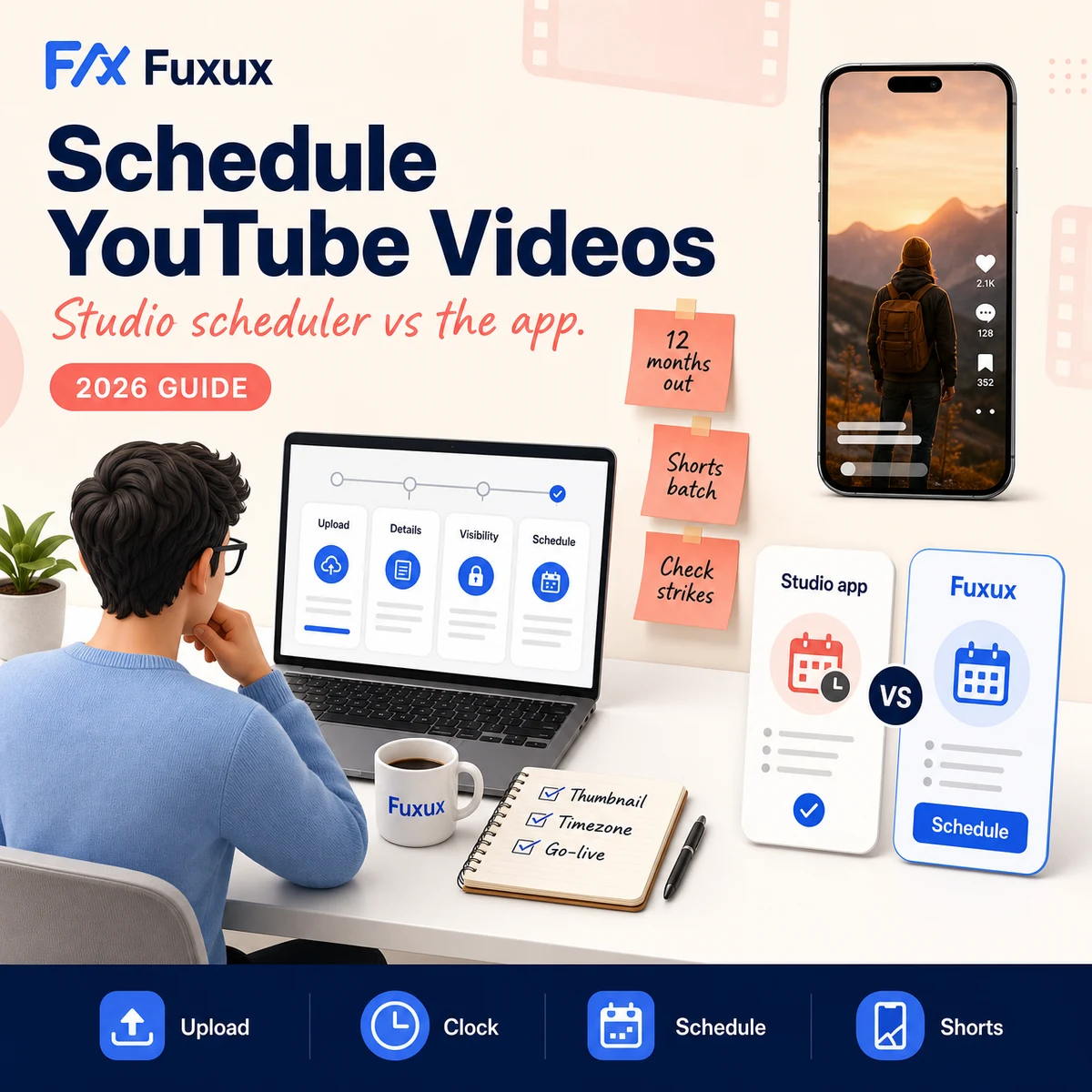
Quick answer: can you schedule YouTube videos?
Yes. YouTube's own Help Center documents the flow directly: upload a video, and on the visibility step choose Schedule instead of Public or Private. Set the date, time, and timezone, then confirm. The video sits in a private, unlisted-to-everyone state right up until the moment you picked, then YouTube switches it public automatically — no one needs to be online, and nothing needs republishing.
What surprises people is how long the runway is. You can schedule up to twelve months in advance, which is far longer than most platforms allow and plenty of room for seasonal content, launch sequences, or just batching a month of uploads in one sitting.
There is one hard stop worth knowing before you rely on it: if your channel picks up a Community Guidelines strike, a scheduled video will not publish during the penalty period. It stays private until the strike clears, so a launch date can silently slip if your account runs into trouble at the wrong moment.
How to schedule a YouTube video, step by step
- Sign in to YouTube Studio at studio.youtube.com, or open the separate YouTube Studio app on iOS or Android.
- Click Create, then Upload videos, and choose your file.
- Fill in the title, description, thumbnail, and other details as usual.
- On the Visibility screen, select Schedule instead of Public or Private.
- Pick the date, time, and timezone you want the video to go live.
- Click Schedule to confirm the upload.
The video now appears in your Studio Content tab with a "Scheduled" label next to it. Nothing else changes about how you made the video — you are choosing when it becomes visible, not changing how it uploads.
YouTube app vs YouTube Studio app: the mix-up that causes most confusion
This is the detail that sends people searching for "can you schedule YouTube videos" in the first place. The regular YouTube app — the one you use to watch videos — has no scheduling feature at all. There is nowhere in it to set a future publish time.
Scheduling lives in YouTube Studio, which is a separate product: either the full desktop site at studio.youtube.com, or the dedicated YouTube Studio app that mirrors most of the desktop workflow for scheduling on the go. If you have only ever opened the consumer app looking for a schedule button, that is why you never found one — it genuinely is not there.
How to schedule YouTube Shorts
Shorts use the identical scheduling mechanism as long-form video — there is no separate "Shorts scheduler" to learn. Upload a vertical video under 60 seconds through the normal upload flow, and YouTube automatically detects and tags it as a Short based on aspect ratio and length. From there, the same visibility screen with the same Schedule option applies.
The practical difference is not the mechanism, it is the cadence. Shorts tolerate — and usually reward — a much more frequent posting rhythm than long-form uploads, so the scheduling question that actually matters for Shorts is less "how do I do it" and more "how many can I queue without burning out my own review process." Batch-record, batch-review, then let the scheduler space them out through the week.
Scheduled uploads vs Premieres: two different tools
YouTube has a second feature that gets confused with scheduling because it also involves picking a future time: Premieres. They solve different problems, and mixing them up costs you the one you actually wanted.
- Scheduled upload. The video is private until the set time, then flips public with no fanfare. No one can watch, comment, or see a countdown beforehand. This is the right choice for a normal upload you just want to time well.
- Premiere. The video is public with a visible countdown page before it airs. Viewers can show up early, chat live in a real-time comment stream, and watch together at the moment it "airs" — closer to a live broadcast than a quiet publish. Desktop lets you set a countdown theme and length; the option exists on mobile too, with fewer controls.
Use a Premiere when the moment of release is part of the content — a launch, a reveal, something worth turning into an event. Use a plain scheduled upload for everything else, which is most uploads, most of the time.
Editing or rescheduling a video you already queued
Plans change, and YouTube makes this straightforward:
- Open the Content tab in YouTube Studio and find the scheduled video.
- Click Edit (or the pencil icon).
- To change the time, set visibility to Private first, adjust the schedule under Visibility, and confirm the new date and time.
- To publish immediately instead of waiting, set visibility to Public and select Publish.
Title, description, and thumbnail can all be edited right up until publish — a scheduled slot is not a locked commitment, it is a placeholder you can still improve.
The timezone detail that causes silent mistakes
Published times display in Pacific Time on the public watch page, which is not necessarily the timezone you were looking at while scheduling in Studio. If you upload from a different timezone and do not double-check, the "posted X hours ago" a viewer sees can read differently than you expected — not wrong, just not what you assumed. Worth a second glance before you walk away from a queued upload.
Native scheduling vs a multi-platform queue
Native scheduling is the right call when YouTube is the only channel you manage, or clearly the primary one. It is free, it is already inside the tool you are uploading with, and there is no third party involved.
A multi-platform scheduler earns its place once YouTube is one of several channels in the same weekly plan. The upload mechanism is identical either way — the difference is everything wrapped around it:
- One brief, several destinations. Adapt a video's caption and description for YouTube, then write real captions for TikTok, Instagram, and X instead of pasting the same block everywhere.
- A calendar you can actually see. Studio's Content tab is a list. A shared calendar shows every platform's queue side by side, which is what surfaces the gaps.
- Cross-platform Shorts reuse. The same vertical clip scheduled as a Short can go out as a TikTok and Reel in the same sitting, on their own optimal timing per platform.
- One place to see what actually shipped. Studio's list only shows what is still pending. A queue keeps the history alongside it.
Plenty of creators schedule YouTube natively and use a multi-platform tool for the rest of their channels. That is a reasonable split, and nothing about it is mutually exclusive.
YouTube scheduling mistakes to avoid
Scheduling a Premiere when you meant a quiet upload. A Premiere is public and visible the moment you set it up, countdown page and all — if you wanted the video to stay invisible until launch, that is the wrong feature.
Confusing the app for Studio. If scheduling seems to not exist, check whether you are in the consumer app instead of Studio or the Studio app before assuming the feature was removed.
Ignoring the strike-period gap. A scheduled video will not publish during a Community Guidelines penalty. If a launch date matters, check your channel status ahead of time, not after the video silently stayed private.
Treating the thumbnail as optional at schedule time. A missing or placeholder thumbnail can go live with the video if you forget to set one before the scheduled time hits. Finish the listing, then schedule it.
Not accounting for the Pacific Time display. If exact release timing matters — a coordinated launch across platforms, say — confirm what the public watch page will actually show, not just what Studio's picker said.
When to publish live instead
Scheduling is for videos you would upload the same way regardless of when you finish editing them. Publish live when timing genuinely cannot be predicted in advance, when you want to be online answering the first wave of comments in real time, or when the video responds to something happening right now — a scheduled slot chosen yesterday will not track a fast-moving moment.
Pre-publish checklist for scheduled YouTube videos
- Title, description, and tags finished — not left as placeholders. The free YouTube title checker and YouTube tag generator help with both.
- Thumbnail set, not the auto-generated default.
- Correct visibility chosen: Schedule for a quiet release, Premiere for an event.
- Date, time, and timezone double-checked against Pacific Time on the public side.
- Channel status checked for any active strike that would block publish.
- End screens and cards added if the desktop-only settings apply to this upload.
- You are reachable soon after publish to handle the first comments.
Scheduling YouTube alongside everything else
If YouTube is one of several channels, the useful comparison is not native versus third-party — it is whether your whole week lives in one calendar or gets pieced together across five apps. Fuxux queues YouTube alongside Instagram, TikTok, X, LinkedIn, Facebook, Threads, Bluesky, and Pinterest, keeps a separate caption per network, and shows the whole week on one calendar so the gaps are obvious before they become missed uploads.
For the upload details that make a scheduled video actually perform once it goes live, our YouTube title length guide covers how much of your title actually shows, and how to cross-post to multiple platforms covers adapting one video idea without flattening it into five identical posts.
We are not affiliated with YouTube, Google, TikTok, Meta, or X. Platform names are used to describe creator publishing workflows.
Bottom line
Yes, you can schedule YouTube videos, natively and for free — upload in Studio, choose Schedule on the visibility screen, set a date, time, and timezone, up to twelve months out. Shorts use the same exact flow as long-form video. The feature only exists in Studio, not the consumer app, and it is a different tool from a Premiere: schedule quietly when you just want good timing, Premiere when the release itself is part of the show.
Publishing to YouTube regularly? See how scheduling works for YouTube.
About the author
I build Fuxux, a scheduler that publishes to 14 platforms from one queue. I write about the parts of posting that are actually fiddly — what each platform will and won't let you schedule natively, where the API limits bite, and how to keep a queue running without babysitting it.
Ready to post smarter?
Fuxux handles the scheduling, the formatting, and the AI captions — so you can focus on ideas.
Start free — no credit card