Google Business Profile Post Size: Image, Text & Video Limits
Use 720×720 px JPG or PNG images under 5 MB and keep text under 1,500 characters. Video limits, post types, and why Google rejects posts, all on one page.

Disclosure: Independent guide from Fuxux. We are not affiliated with Google, or with any third-party tool mentioned here. Product names belong to their owners.
The safe Google Business Profile post image size is 720 × 720 pixels, as a JPG or PNG between 10 KB and 5 MB. The post text is capped at 1,500 characters. Those are the two numbers most people come looking for, but a Business Profile post has more moving parts than a normal social post: three different post types, an optional action button, a six-month shelf life, and a review step that can quietly hold a post back.
Google splits these details across several Help Center pages and the Business Profile API reference, and one of the most important numbers — the character limit — isn't written in the Help Center at all. It only shows up as an error message in the post editor. So this guide puts everything on one page.
Checking limits on more than one platform? Pair this with the Twitter/X character limit or Discord's character limit.
Quick answer: use a 720 × 720 px JPG or PNG (minimum 250 × 250 px, 10 KB–5 MB). Keep the text under 1,500 characters. Videos can run up to 30 seconds and 75 MB at 720p or higher. Posts older than six months are archived unless you give them a date range.
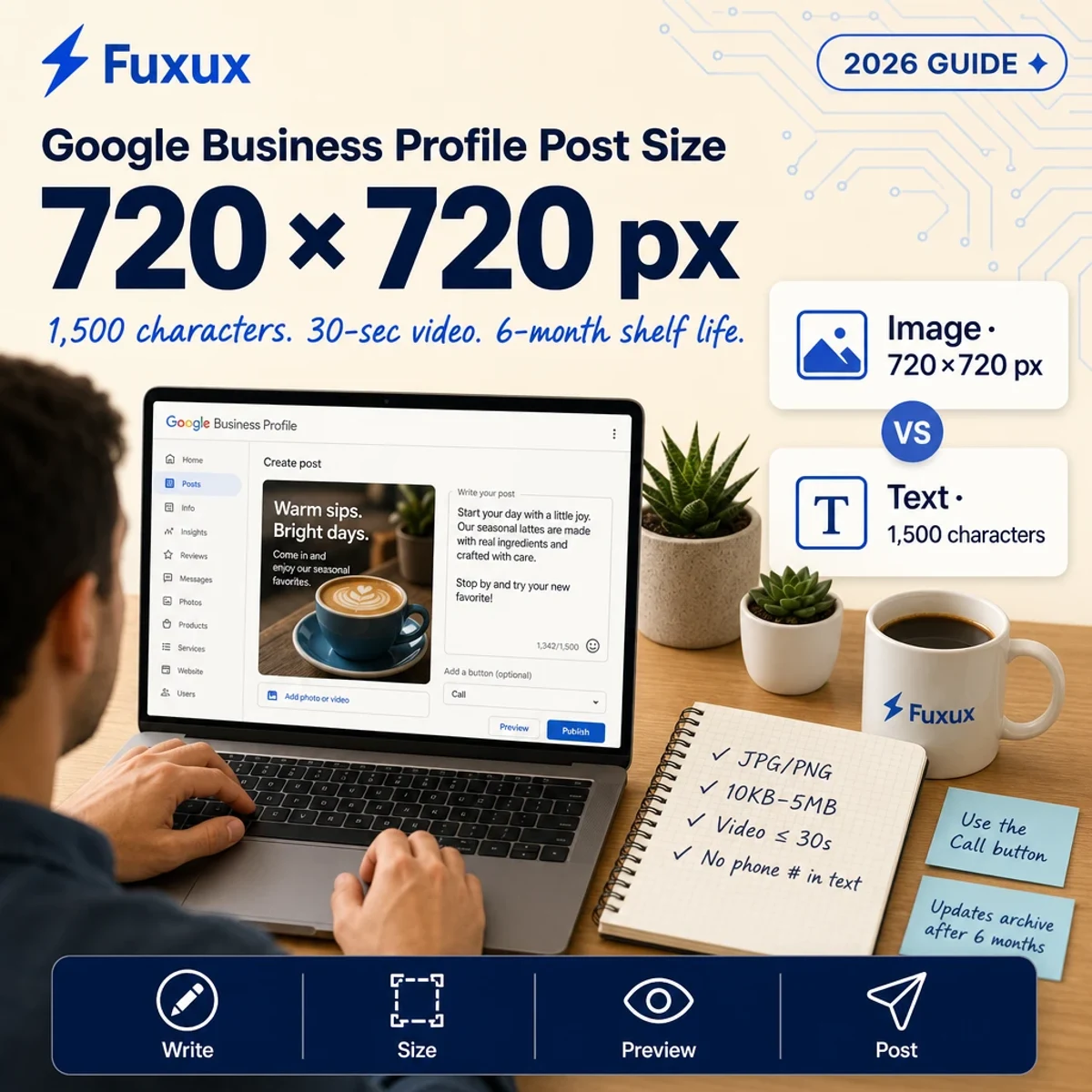
Google Business Profile post size at a glance
- Image size: 720 × 720 px recommended, 250 × 250 px minimum
- Image format: JPG or PNG
- Image file size: between 10 KB and 5 MB
- Text: up to 1,500 characters
- Video: up to 30 seconds, up to 75 MB, 720p or higher
- Post types: Update, Offer, Event
- Shelf life: archived after six months unless a date range is set
Image size: 720 × 720 is the number to design for
Google's photo and video guidelines for Business Profile give one recommended resolution: 720 pixels tall by 720 pixels wide. The minimum is 250 × 250 px. Photos need to be JPG or PNG, and the file has to land between 10 KB and 5 MB.
Those specs are written for Business Profile media in general, not for posts alone. Google doesn't publish a separate, post-only image spec. In practice, the same uploader handles both, which is why 720 × 720 is the size almost every GBP post guide settles on.
Why square works best
A post's image doesn't always appear at the same shape. The preview in a listing's Updates tab and the full post view don't frame the photo identically, and Google adjusts the crop to fit whichever surface it's shown on. A square image survives those crops best, because there's no long edge for Google to trim.
Two habits keep a post image readable wherever it lands:
- Keep text and faces near the centre. Anything pushed to the edges is the first thing a crop removes.
- Go bigger than the minimum, not smaller. A 250 px image passes the upload check but looks soft on a modern phone. Exporting at 720 px or larger (while staying under 5 MB) keeps it sharp.
Photo quality rules
Google also asks that photos be "in focus and well lit, and have no significant alterations or excessive use of filters." That line comes from the same guidelines page. A heavily filtered or text-covered graphic isn't automatically rejected, but it's the kind of image the review step looks at more closely.
Text limit: 1,500 characters
A Business Profile post can hold up to 1,500 characters of text. You won't find that number in Google's Help Center article on posts. It's enforced in the editor instead: go over it and Google shows the message "Enter details no longer than 1500 characters," which is also the title of a Business Profile Community thread from owners who hit it.
1,500 characters is a ceiling, not a target. The post preview on Search and Maps shows only the start of the text, so the first sentence or two carry almost all the weight. Lead with the thing you want people to act on — the offer, the date, the new product — and let the rest be detail for the few who tap through.
What counts toward the limit
Every character counts: spaces, punctuation, line breaks and emoji. There's no separate allowance for hashtags either. They're plain text on Google, don't link anywhere, and mostly waste characters, so most Business Profile posts are better off without them.
Video limits: 30 seconds, 75 MB, 720p
Business Profile video uploads are capped at 30 seconds and 75 MB, and Google asks for a resolution of 720p or higher. These come from the same photo and video guidelines.
Thirty seconds is short. A clip made for Reels or TikTok usually needs trimming before it fits. Short clips that make sense without sound are the safest fit.
The three post types, and what each one needs
Google's guide to creating posts lists three post types. They share the same text and media limits, but each asks for different fields.
Update
The everyday post: news, a new product, opening hours for a holiday, a photo from this week. An Update takes a description plus an optional photo or video and an optional action button. Nothing else is required, which is why it's the post type most businesses use most often.
Offer
An Offer needs a title, dates and a time. You can add a description, a photo or video, a coupon code, a link to redeem online, and terms and conditions. Offers work a little differently from the other two types: the Business Profile API reference notes that the standard action button is ignored for Offer posts. The redeem link does that job instead.
Event
An Event needs a title, start and end dates, and times, plus an optional description, photo or video, and action button. Because an Event carries its own date range, it stays up for exactly that window rather than following the six-month archive rule.
Action buttons
Updates and Events can carry one action button. The Business Profile API lists six button types:
- Book — appointments or reservations
- Order — online ordering
- Shop — a product or store page
- Learn more — any page with more detail
- Sign up — a newsletter, class or waitlist
- Call — dials the phone number on your profile
The Call button matters more than it looks, because of the next section.
Why Google Business Profile posts get rejected
Every post goes through a review before it appears. Google shows one of three statuses: Live (visible on Search and Maps), Pending (still uploading or processing, or the profile isn't verified yet), or Not approved (it broke a content policy). The posts content policy explains the most common reasons.
Phone numbers, emails and handles in the text
This is the one that catches most people. Google says it "may remove posts with unverified contact information," and that covers phone numbers, email addresses and social media handles typed into the post. The fix is to use the Call button, which uses the number already verified on your profile, and to leave contact details out of the text entirely.
Hotels promoting deals
Hotels can't use posts for promotions. The policy rules out posts that "mention or include links to deals, promotions, special offers, or discounts." Hotels can still share local, timely information; they just can't advertise a rate.
Regulated products
Businesses in regulated categories — alcohol, tobacco, pharmaceuticals, gambling, weapons and similar — can still post, but the posts can't be about those products. Google's broader prohibited and restricted content policies apply to every post on top of the posts-specific rules.
How long posts stay visible
Google's Help Center is specific: "Posts older than 6 months are archived unless a date range is set." Offers and Events run on their own date ranges instead. Updates don't have one, so an Update from spring quietly disappears from your listing by autumn.
That's the real reason consistent posting matters on Google. A listing that posted a burst of Updates once and stopped will, six months later, show no posts at all. A steady rhythm — even one Update a week — keeps the Updates tab from going empty.
Where your posts appear
On mobile, posts sit in the Updates or Overview tab of your listing in Search and Maps. On desktop, they appear in the From the owner section of the listing.
Can you schedule Google Business Profile posts?
Yes. Google's post editor has scheduling built in: turn on Schedule this post to pick a later publish time, and use the Repeats menu to post weekly, monthly or on a custom schedule. You can also select several profiles at once if you manage more than one location.
The limit of the built-in scheduler is that it only covers Google. If the same announcement is also going to Instagram, Facebook or LinkedIn, you're writing and scheduling it again in every app.
Fuxux's Google Business Profile scheduler puts it in the same calendar as your other channels. It currently publishes Update posts with text and photos, trims the text to Google's 1,500-character limit, and keeps a Google-specific version of each post separate from your Instagram or LinkedIn copy. Offers, Events and action buttons aren't supported yet, so for those, Google's own editor is still the right tool. For the wider workflow, see how to cross-post to multiple platforms.
Common mistakes
- Typing a phone number into the post. It's one of the named reasons Google removes posts. Use the Call button instead.
- Uploading a wide banner. A long landscape graphic gets cropped on some surfaces. Square, 720 × 720 px, is the safe shape.
- Burying the point. Only the first lines show before "more," so an offer in the last paragraph goes unseen.
- Posting once and forgetting. Updates are archived after six months, so a listing without regular posts eventually shows none.
- Reusing a long vertical video. Clips are capped at 30 seconds; trim first.
- Adding hashtags. They don't link anywhere on Google and eat into the 1,500 characters.
The short version
Design Google Business Profile post images at 720 × 720 px, as a JPG or PNG under 5 MB, and keep the important part in the centre. Write under 1,500 characters and put the point in the first line. Keep videos under 30 seconds. Leave phone numbers out of the text and use the Call button instead. And post on a steady rhythm, because Updates disappear after six months.
Frequently asked questions
What is the best image size for a Google Business Profile post?
720 × 720 pixels, as a JPG or PNG between 10 KB and 5 MB. The minimum Google accepts is 250 × 250 px, but images that small look soft on modern screens.
What is the character limit for a Google Business Profile post?
1,500 characters, including spaces, punctuation, line breaks and emoji. Going over it triggers the editor message "Enter details no longer than 1500 characters."
Can I post a video on Google Business Profile?
Yes. Videos can be up to 30 seconds long and up to 75 MB, at a resolution of 720p or higher.
Why was my Google Business Profile post not approved?
The most common reason is contact information in the text: phone numbers, email addresses or social handles. Google may remove posts with unverified contact details. Hotels promoting deals and posts about regulated products are also rejected.
How long do Google Business Profile posts last?
Posts older than six months are archived unless they have a date range. Offers and Events run on their own date ranges instead.
Can I schedule Google Business Profile posts?
Yes. Google's editor has a "Schedule this post" option and a "Repeats" menu for weekly, monthly or custom schedules. Tools like Fuxux can also schedule Update posts alongside your other social channels.
Do hashtags work on Google Business Profile?
No. Hashtags are shown as plain text on Google and don't link to anything, so they only use up characters.
About the author
I build Fuxux, a scheduler that publishes to 14 platforms from one queue. I write about the parts of posting that are actually fiddly — what each platform will and won't let you schedule natively, where the API limits bite, and how to keep a queue running without babysitting it.
Ready to post smarter?
Fuxux handles the scheduling, the formatting, and the AI captions — so you can focus on ideas.
Start free — no credit card