How to Change Instagram to a Business Account
Learn how to change Instagram to a business account in 2026: Business vs Creator, public profile rules, contact buttons, Insights, Facebook Page setup.

Disclosure: Independent guide from Fuxux. We are not affiliated with the platforms or third-party tools mentioned in this article. Product names belong to their owners.
If you are trying to figure out how to change Instagram to business account, the short answer is simple: open Instagram, go to your profile settings, choose account type tools, switch to a professional account, and select Business.
The better answer is a little more careful. A business account changes what your profile can do: insights, contact buttons, ad access, professional dashboard, and cleaner connections to Facebook Pages and scheduling tools. That makes the switch useful, but only if the profile is set up correctly after the toggle.
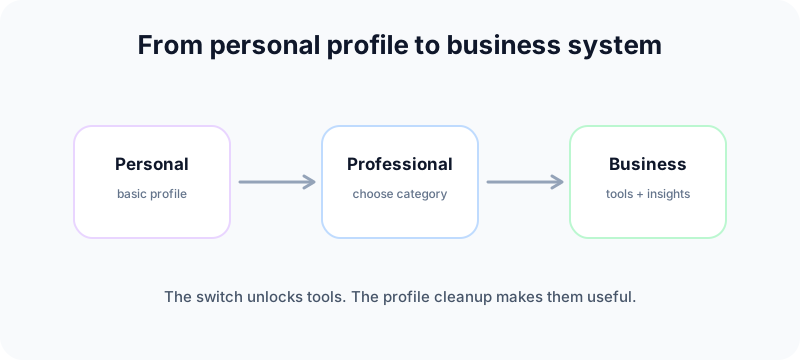
Quick answer: change Instagram to a business account
Instagram's official Help Center says you can change a personal account to a professional account, then choose Business or Creator. It describes Business accounts as best for retailers, local businesses, brands, organizations, and service providers. Creator accounts are better for public figures, content producers, artists, and influencers.
The current app path is usually:
- Open Instagram and go to your profile.
- Tap the menu icon.
- Open Settings and activity.
- Under For professionals, tap Account type and tools.
- Tap Switch to professional account.
- Choose a category that describes the account.
- Select Business.
- Add contact details or skip them for now.
- Optionally connect a Facebook Page.
- Review the profile, dashboard, category, and contact display.
See Instagram's official guide to setting up a professional account for the current wording. Meta's Business Help Center also explains that professional accounts unlock the professional dashboard, insights, ads, contact details, and optional Facebook Page connection.
Before you switch: check these 5 things
Do this first if the account belongs to a client, store, SaaS product, local business, agency, or team. It prevents the most annoying cleanup later.
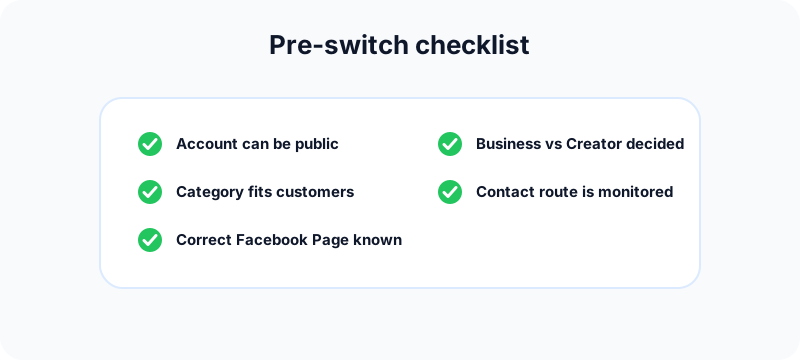
1. Make sure the account can be public
Instagram notes that if a personal account is private, switching to a professional account makes it public. That matters for founders, creators, and small businesses that have been using a personal account informally. If privacy matters more than business tools, pause before switching.
2. Decide between Business and Creator
Choose Business when the account represents a company, shop, local service, product, restaurant, agency, app, or brand with customer contact needs. Choose Creator when the account is mainly an individual personality, artist, influencer, or public figure.
3. Pick a practical category
The best category is the one a customer would understand quickly. Avoid vague labels if a clearer service category exists. Your category is not just an internal setting; it helps visitors understand whether they landed on the right profile.
4. Prepare contact details
Use an email, phone number, or address that someone actually monitors. A contact button is only useful if it leads to a live business process.
5. Know which Facebook Page should connect
The Facebook Page step is optional, but it becomes important for ads, sharing, permissions, and some scheduling workflows. If you are not sure which Page owns the business, solve that before connecting random assets.
Step-by-step: switch in the Instagram app
The app labels may shift, but the route below matches the current professional account flow.
Open account type and tools
From your profile, tap the menu, open settings, and look under the professional tools area. If you see Account type and tools, you are in the right place.
Start the professional account flow
Tap Switch to professional account. Instagram may show a few intro screens about professional features. Continue until you reach category selection.
Choose the right category
Pick the closest accurate category. A local gym, ecommerce brand, consultant, nonprofit, and SaaS startup should not all hide behind the same generic label.
Select Business
When Instagram asks for account type, choose Business. This is the better default for companies and teams that need customer contact, ads, reporting, and tool compatibility.
Add or skip contact details
Add the public contact information you want customers to use. If you are not ready, skip it and return later from Edit profile. Do not publish a phone number or email just because the screen asks for one.
Connect Facebook if it helps your workflow
If the business already has a Facebook Page, connect it during setup or soon after. For a clean walkthrough, use our guide on connecting Instagram to Facebook.
Business vs Creator vs Personal accounts
The account type should match the job you need Instagram to do.
| Account type | Best for | Main trade-off |
|---|---|---|
| Personal | Private use, casual posting, friends and family | Limited professional tools |
| Creator | Influencers, artists, public figures, solo personal brands | Less business-first positioning |
| Business | Companies, shops, service providers, agencies, products | Public profile and operational setup required |
Meta's overview of professional accounts on Instagram says professional accounts can be Business or Creator, and that business accounts are best for businesses looking to grow and reach customers. That is the key distinction.
What changes after switching to Business
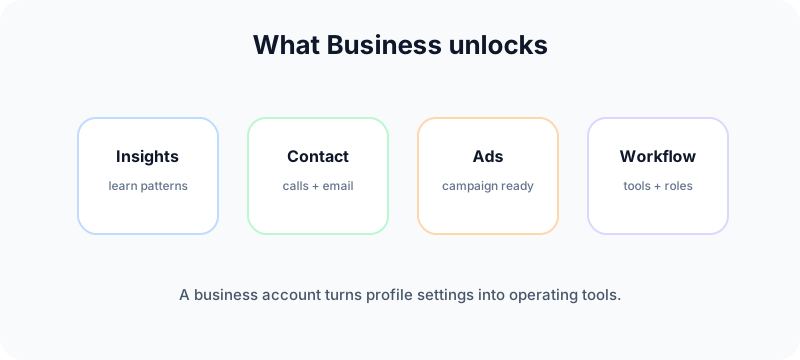
Professional dashboard
The dashboard gives you a central place to access professional tools, account actions, performance information, and feature prompts. It is not magic, but it is easier than hunting through personal-account settings.
Instagram Insights
Insights help you understand who follows you, when they are active, and how specific posts perform. Use this to adjust posting times, creative formats, and campaign themes instead of relying only on likes.
Contact buttons
A business account can show a Contact button with email, phone, or directions. Meta notes that this information can be displayed or hidden from the profile. Keep it visible only when the contact route is ready.
Ads and promotions
Business setup gives you a cleaner path into Instagram ads and Meta business tools. Even if you do not run ads today, the account is prepared for a future campaign.
Better publishing workflow
A business account makes it easier to connect publishing, scheduling, analytics, and team workflows. It does not mean every tool can do everything, but it removes many basic personal-account limitations.
Profile cleanup after the switch
The switch only unlocks the tools. The profile still needs to look and function like a business.
Rewrite the bio for buyers, not friends
Your bio should answer three questions quickly: who you help, what you offer, and what someone should do next. Keep it clear and specific.
Check the public category and buttons
Open your profile as a visitor would. Confirm the category, buttons, contact details, and link make sense together.
Build a visual system
Business accounts need recognizable content. Use our social media aesthetic guide to define visual rules, then use the free Instagram grid maker to preview how campaign visuals sit together.
Prepare reusable content formats
If you publish educational content, split longer ideas into swipeable posts with the free Instagram carousel splitter. Use the social media growth guide to map a safer weekly cadence before you start scheduling aggressively.
Free tools to use after switching to Business
The account type change is only useful if the next posts are easier to plan, measure, and recognize. These free tools help turn the new business setup into a working content system.
- Instagram handle checker: confirm the brand handle before you print it on visuals, bios, landing pages, or campaign materials.
- Instagram grid maker: preview how business-profile content looks together before publishing a launch or rebrand sequence.
- Instagram carousel splitter: turn tutorials, checklists, offers, and proof points into carousel posts for the business account.
- Social media growth guide: map a realistic 30-day cadence so the new account does not jump into spammy posting volume.
- TikTok caption generator: adapt the same business message into short-form captions for TikTok without duplicating Instagram copy.
- LinkedIn text formatter: repurpose business announcements into cleaner professional posts when the campaign also needs LinkedIn.
Troubleshooting: why the business switch is missing or broken
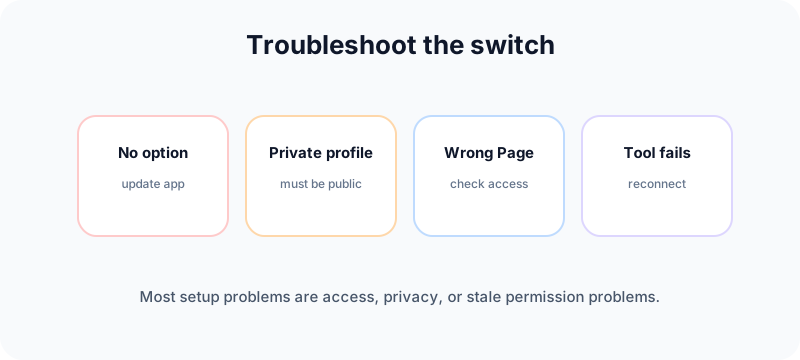
The switch option is missing
Update the app, close it fully, sign back in, and check settings again. Labels can move between Settings and activity, Account type and tools, Business tools and controls, or related professional sections.
The account is private
Professional accounts are public. If the account must stay private, a business account may not be the right fit.
The wrong Facebook Page appears
This is usually an access or ownership issue. Check which Facebook profile is logged in, whether you control the Page, and whether the Instagram account is already connected elsewhere.
Contact details look wrong
Edit profile information after switching. Hide public contact info until the business is ready to answer those messages, calls, or emails.
A scheduler still cannot connect
Reconnect the Instagram account after switching and after linking the correct Facebook Page. Tools often need fresh permissions once account type or Page ownership changes.
Can you switch back to a personal account?
Yes. Instagram allows professional accounts to switch back to personal. But Meta's help article about switching back says you lose access to Meta Business Tools such as Meta Business Suite and Meta Ads Manager, as well as in-app insights and ads. It also says insights data is preserved for 90 days, during which you can regain access by switching back to a professional account.
That means switching back is possible, but it should not be casual if the account is part of a real business workflow.
What to do after switching
A business account is a foundation, not a growth strategy. Once the account type is correct, build the operating system around it.
- Review the bio, category, contact buttons, and link.
- Connect the correct Facebook Page if the business uses Meta tools.
- Check Insights after several posts, not after one random update.
- Build repeatable content formats for Reels, carousels, Stories, and feed posts.
- Use a scheduler once the profile setup and permissions are clean.
- Review performance monthly and update the content plan.
If you are still choosing the account identity, use the free Instagram handle checker before building assets around a name. If Instagram is part of a larger launch, Fuxux can help you plan posts across Instagram, Facebook, LinkedIn, TikTok, YouTube, X, Pinterest, Threads, and Bluesky from one calendar.
Frequently asked questions
Is switching to an Instagram business account free?
Yes. Switching to a professional Business account is free. Paid ads are optional.
Will I lose followers when I switch?
No. The account remains the same account. The bigger change is that the profile becomes professional and public if it was private before.
Should I choose Business or Creator?
Choose Business for companies, stores, agencies, service providers, and products. Choose Creator for public figures, influencers, artists, and individual content personalities.
Do I need a Facebook Page?
Not always. You can skip Facebook during setup, but connecting the correct Page is useful for ads, sharing, permissions, and professional publishing workflows.
Can I hide my contact information?
Yes. Meta says you can choose whether to display or hide category labels and contact information from profile display settings.
Can a business account be private?
No. If your personal account is private, switching to a professional account makes it public. Decide whether that fits the account before switching.
Bottom line
Changing Instagram to a business account is easy. Making the switch useful takes a little more care: pick the right category, decide whether to connect Facebook, clean up contact details, and build a posting workflow around the new tools.
Once the setup is clean, you can stop treating Instagram like a casual feed and start managing it like a business channel: measurable, organized, and ready for content planning across the rest of your social stack.
Publishing to Instagram regularly? See how scheduling works for Instagram.
About the author
I build Fuxux, a scheduler that publishes to 12 platforms from one queue. I write about the parts of posting that are actually fiddly — what each platform will and won't let you schedule natively, where the API limits bite, and how to keep a queue running without babysitting it.
Ready to post smarter?
Fuxux handles the scheduling, the formatting, and the AI captions — so you can focus on ideas.
Start free — no credit card